

Open Integrations
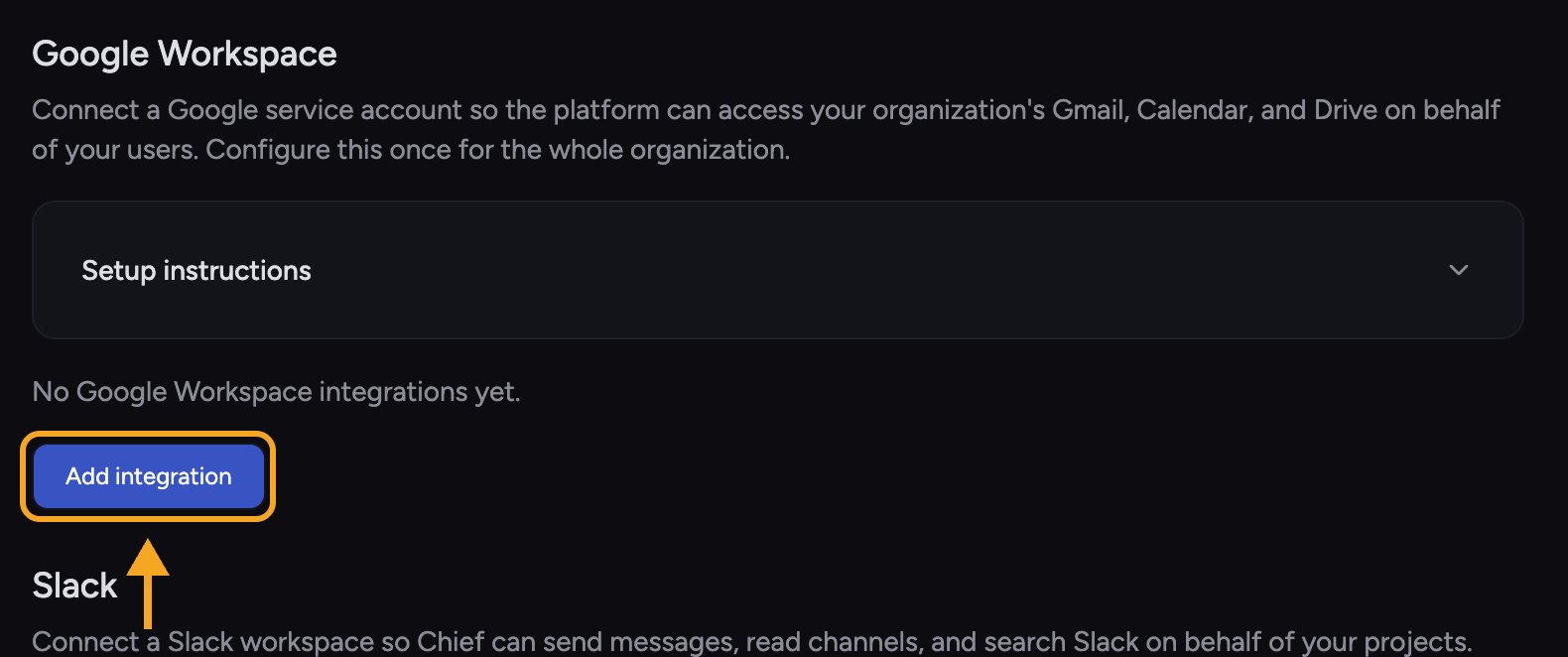
- Open the account menu (your avatar) and choose Organization, then select Integrations in the left-hand navigation.
- The page lists one row per service — Google Workspace, Slack, Notion, Linear, GitHub, and Custom Integrations by MCP Servers — each showing Not connected, a count of connections, or Reconnect required. Every row except Custom Integrations by MCP Servers starts collapsed. Expand Google Workspace, then select Add Google workspace to start setup.
Set up Google Workspace
- Create a service account in your Google Cloud project.
- Enable the Gmail, Calendar, Drive, People, and Admin SDK APIs in that project.
- In the Workspace Admin Console, go to Security → Access and data control → API controls → Domain-wide delegation, and authorize the service account’s client ID with the scopes Chief lists.
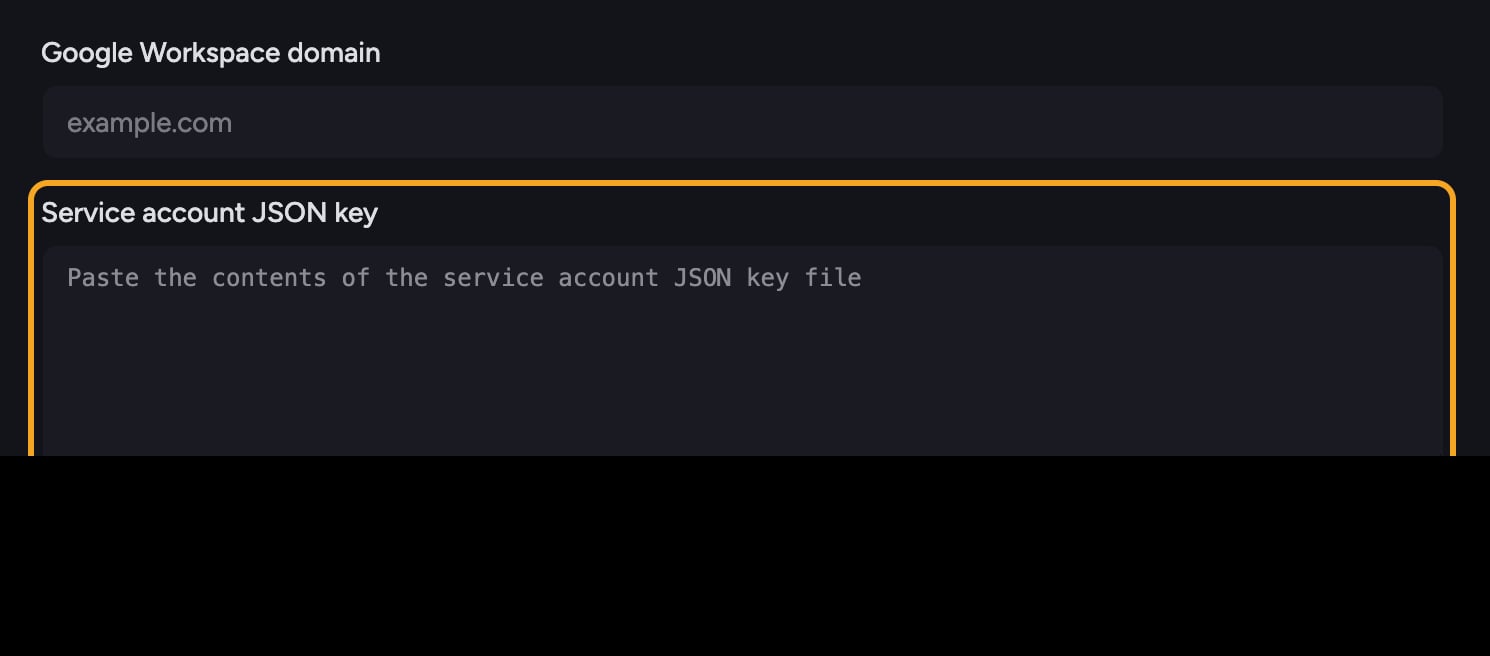
- Download the service account JSON key, then paste it into Service account JSON key or use Upload JSON file in Chief.
- Enter your Google Workspace domain, choose which Projects the integration applies to, and select Connect workspace.
Managing the integration
Each connected Workspace appears in the Integrations list. In its Google Calendar block, an owner can select Turn on for members by default. This only recommends Schedule my calendar meetings to members who haven’t chosen a setting; it doesn’t turn on calendar access or read anyone’s calendar. Each member must enable Schedule my calendar meetings under Settings → Connected accounts before Chief can read their calendar and schedule Live Sessions. The Workspace’s Deployed projects list carries Edit Drive content and Undeploy on every row. Use Edit Drive content to change a Project’s Drive ingestion settings. Under Add to project, tick a Project to deploy the integration to it — the tick applies immediately. Undeploy asks you to confirm (Undeploy from this project?) because it removes every synced Drive file from that Project and deletes its indexed content. Remove disconnects the Workspace itself, after the same warning for every Project on it (Disconnect Google Workspace? → Disconnect). Each Project can have one Google Workspace integration; when every Project already has one, the Add to project list reads “All projects are deployed.”Frequently asked questions
A user sees "Your account isn't part of this organization's connected Google Workspace domain."
A user sees "Your account isn't part of this organization's connected Google Workspace domain."
That user’s email is on a domain that isn’t the connected Workspace domain. The integration only covers accounts on the domain you configured. Confirm the user is on the right domain, or have an owner add the correct domain.
Setup fails with a permissions or scope error.
Setup fails with a permissions or scope error.
This usually means domain-wide delegation wasn’t authorized for the service account’s client ID, or a required scope is missing. Re-check the delegation step in the Workspace Admin Console and authorize the exact scopes Chief lists, then save again.
Can I connect Google for just one Project?
Can I connect Google for just one Project?
Yes. During setup you select which Projects the integration applies to. A Project can have at most one Google Workspace integration.