

Add an @-mention
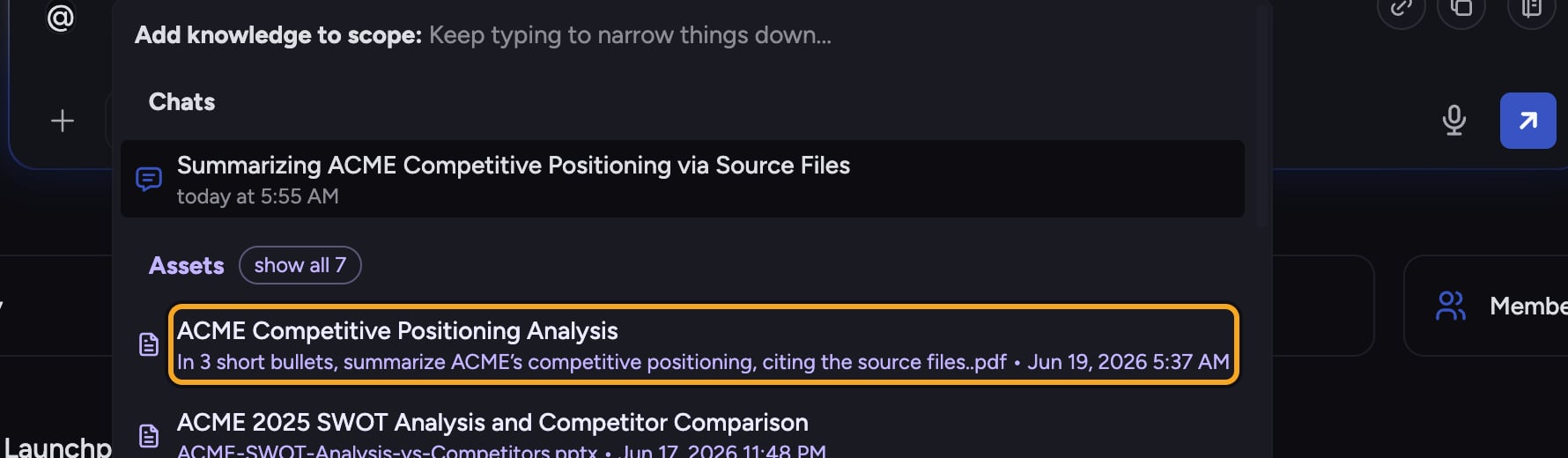
- Click into the prompt bar and type @. A picker opens for adding knowledge to your scope.
- Keep typing to narrow the list. Before you type a search, items you use often may appear first under Frequently used. The remaining populated groups are Chats, Live Sessions, Assets, Spreadsheets, Labels, Collections, Concepts, connected integrations, Agents, Skills, and Expert Voices.
- Click the item you want (or use the arrow keys and press Enter). It is inserted into your prompt as an inline chip.
- Finish typing your prompt around the chip, then send. If the Files chip covers your whole Library, mentioning one or more files limits this prompt to those files and any other items you mention. Your next prompt returns to the scope shown by the Files chip.
What you can @-mention
- Files — any document in your Project Library.
- Labels — pulls in every file carrying that Label.
- Collections — pulls in the files that match the Collection.
- Concepts — adds a defined Concept to the context.
@-mention vs. the Files chip
Both feed the same answer. An @-mention lives inline in your prompt, while the Files chip sets standing scope for the task. If the chip covers your whole Library, a file mention replaces that whole-Library search for this prompt only; the chip stays on the Library, and your next prompt returns to it. If the chip already contains a specific selection, a file mention merges into that selection. Mentioned Labels, Collections, and Concepts join the standing scope.FAQ
I typed @ but nothing comes up.
I typed @ but nothing comes up.
If you keep typing and see no matches, the item may not be in this Project, or it may still be processing after upload. Check your spelling, or upload the file first, then mention it.
How do I remove an @-mention?
How do I remove an @-mention?
Place your cursor just after the inline chip in the prompt and delete it like any other character. Removing the chip takes that item back out of the prompt’s knowledge.
Does @-mentioning a Label include files added to it later?
Does @-mentioning a Label include files added to it later?
The mention resolves the Label’s files when you send. Add the Label again in a later prompt, or keep it selected through the Files chip, to pick up newly tagged files.