

Pin a memory

- Open the memory page and find the memory you want to highlight.
- On the memory card, click the Pin button (the pin icon on the right). The icon fills in to show it’s pinned, and the card gets a colored left edge.
- Pinned memories move to the top of the list so they’re easy to find.
- Chief uses a pinned memory in every answer. Pinned memories load first, before Chief looks for other relevant ones, as long as the task’s Memory menu includes that scope.
- Automatic capture never changes a pinned memory. Chief won’t reword it, merge a new memory into it, or remove it. A related new memory is saved as its own entry beside it.
- Chief’s spelling corrections are pinned project memories. When you highlight words in a live session transcript and click Write as… in the bubble that appears, Chief saves a pinned memory on the project’s Memories page worded exactly
Write "X" as "Y".Editing that sentence, unpinning it, or archiving it stops the correction.
Archive a memory
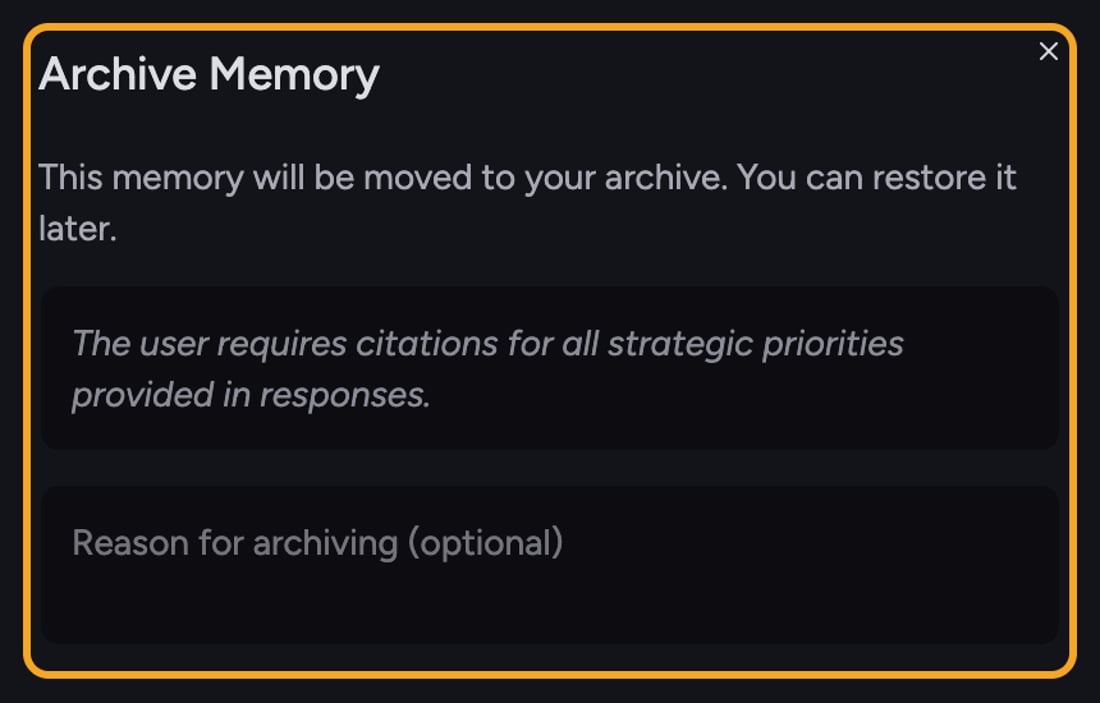
- On the memory card, click the Archive button (the archive icon on the right).
- A dialog titled Archive Memory appears with the message “This memory will be moved to your archive. You can restore it later.”
- Optionally type a note in the Reason for archiving (optional) box.
- Click Archive. The memory leaves your main list and moves to the archive.
Restore an archived memory
- On the memory page, find the Archived Memories section near the bottom and click it to expand.
- Locate the memory you want back.
- Click the Restore button (the refresh icon). The memory returns to your active list.
FAQ
Does archiving a memory delete it?
Does archiving a memory delete it?
No. Archiving moves the memory to the Archived Memories section, where it’s kept until you restore it or delete it permanently. It just stops cluttering your active list.
I archived a memory and now I can't find it.
I archived a memory and now I can't find it.
Archived memories don’t show in the main list. Scroll to the Archived Memories section at the bottom of the memory page and expand it — your archived memory is there, ready to Restore.