

- Fact Check validates claims, cites sources, and flags uncertainty.
- Meeting Prep prepares agendas, pre-reads, action-item trackers, summaries, and follow-up assignments.
- Skill Creator creates or improves a Skill’s definition.
- Summarize creates concise, structured summaries.
Find the built-in Skills
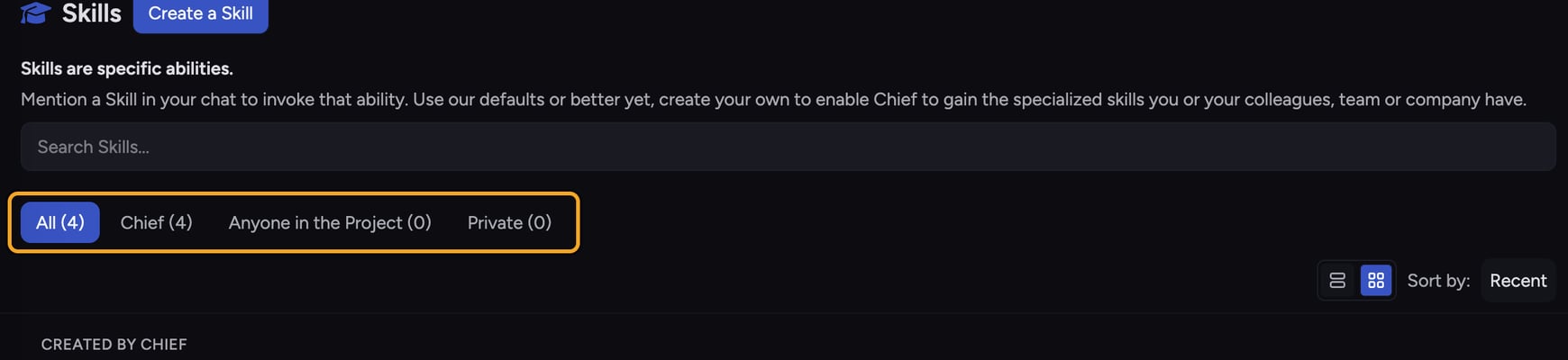
- In the left navigation, click Skills. The Skills page opens and lists every Skill available to you.
- On each Skill card, look at the scope badge. Cards badged Chief are the built-in Skills. Cards badged Anyone in the Project or Private are custom Skills.
- To narrow the list to Chief’s own Skills, click the Chief tab at the top of the list.
Use a built-in Skill in a task
- Open or start a task so the prompt bar is visible.
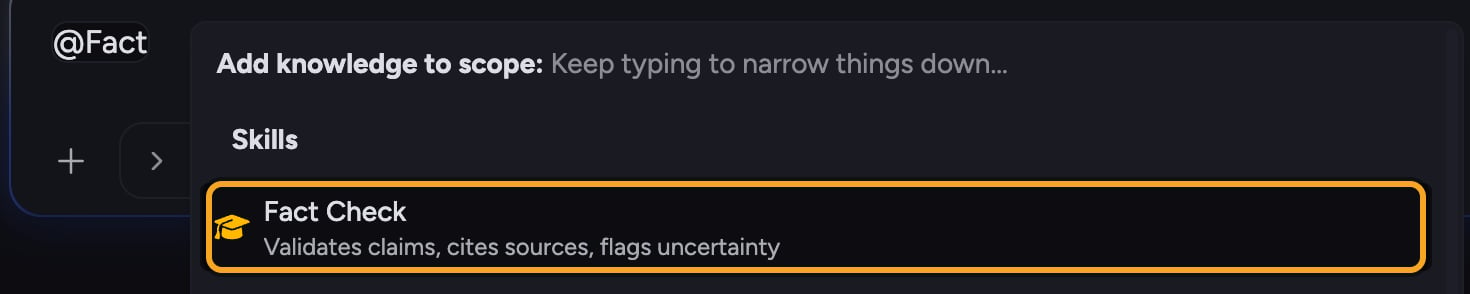
- In the prompt bar, type @ followed by the Skill’s name. A picker appears.
- Click the Skill you want. It is inserted into your prompt as a pill (for example, @Skill name).
- Type the rest of your request, then send the message. Chief follows the Skill’s instructions for that response.
FAQ
Can I edit a built-in Skill?
Can I edit a built-in Skill?
Not directly — built-in Chief Skills are read-only. Duplicate one first (the copy icon on the card), then edit the copy. Your duplicate is saved as a custom Skill.
A built-in Skill isn't showing up when I type @. What's wrong?
A built-in Skill isn't showing up when I type @. What's wrong?
Check that the Skill is enabled. Open the Skills page and confirm the toggle on its card is on — a disabled Skill won’t appear in the @ picker. If it’s enabled and still missing, make sure you’re typing enough of the name for it to match.
Do built-in Skills count against my own Skills?
Do built-in Skills count against my own Skills?
No. Built-in Skills are always available and separate from the custom Skills you create or share within your Project.