

Compress a group of memories

- Open the memory page for the scope you want and find the memories you want to merge.
- Tick the checkbox on each memory card you want to include. You need to select at least two.
- A selection bar appears showing “{count} selected”. Click the Compress button (the merge icon) in that bar.
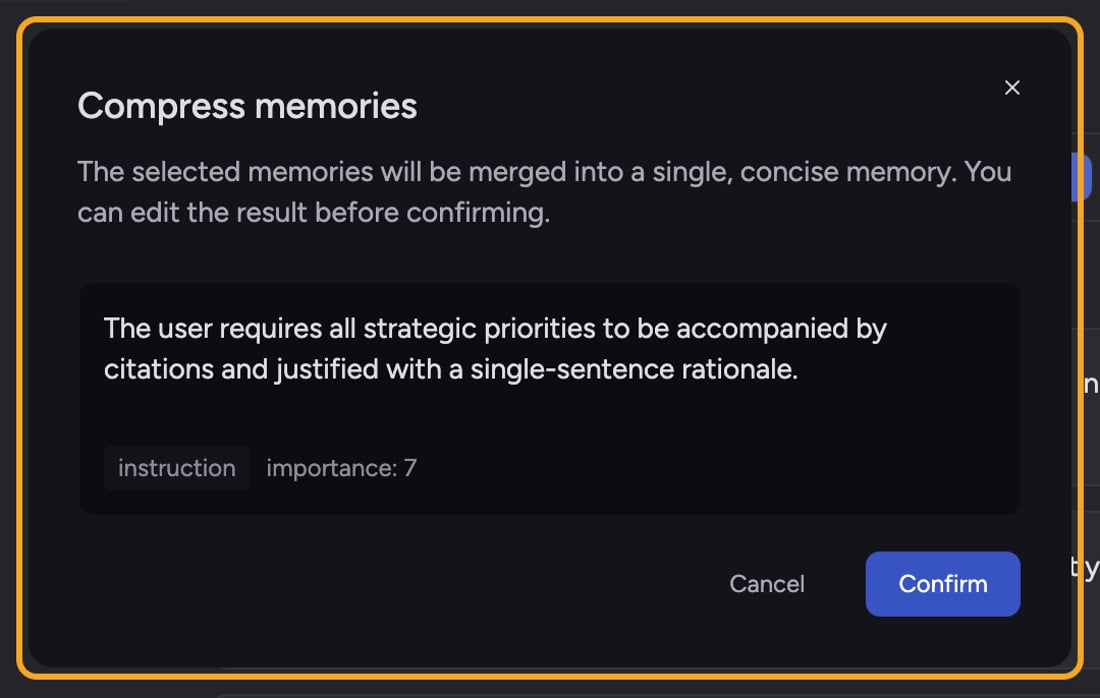
- A dialog titled Compress memories opens and shows “Compressing memories…” while Chief merges them.
- Chief shows the proposed result: one or more merged memories, each in an editable text box with a category tag and an importance value. Edit the wording if you like, or click the trash icon to drop a proposed memory.
- Click Confirm to save the merged result. To back out, click Cancel.
ℹ️ Good to Know: You’re always shown a preview before anything is saved. Nothing is merged until you click Confirm, so you can review and fix the result first.
If compression fails
If something goes wrong, the dialog shows “Failed to compress memories. Please try again.” Click Retry to try again, or Cancel to close. Your original memories are untouched until you confirm a successful result.FAQ
Will compressing change the wording of my memories?
Will compressing change the wording of my memories?
It produces a merged, concise version — but you review it first. The result appears in editable text boxes, so you can adjust every word before clicking Confirm. Nothing is saved until you do.
I don't see checkboxes on my memories.
I don't see checkboxes on my memories.
Checkboxes only appear on memories you can edit. For shared Project Memories and Organization Memory, that depends on your role. Memories you can’t edit can’t be selected for compression.