

Find your way around in 60 seconds
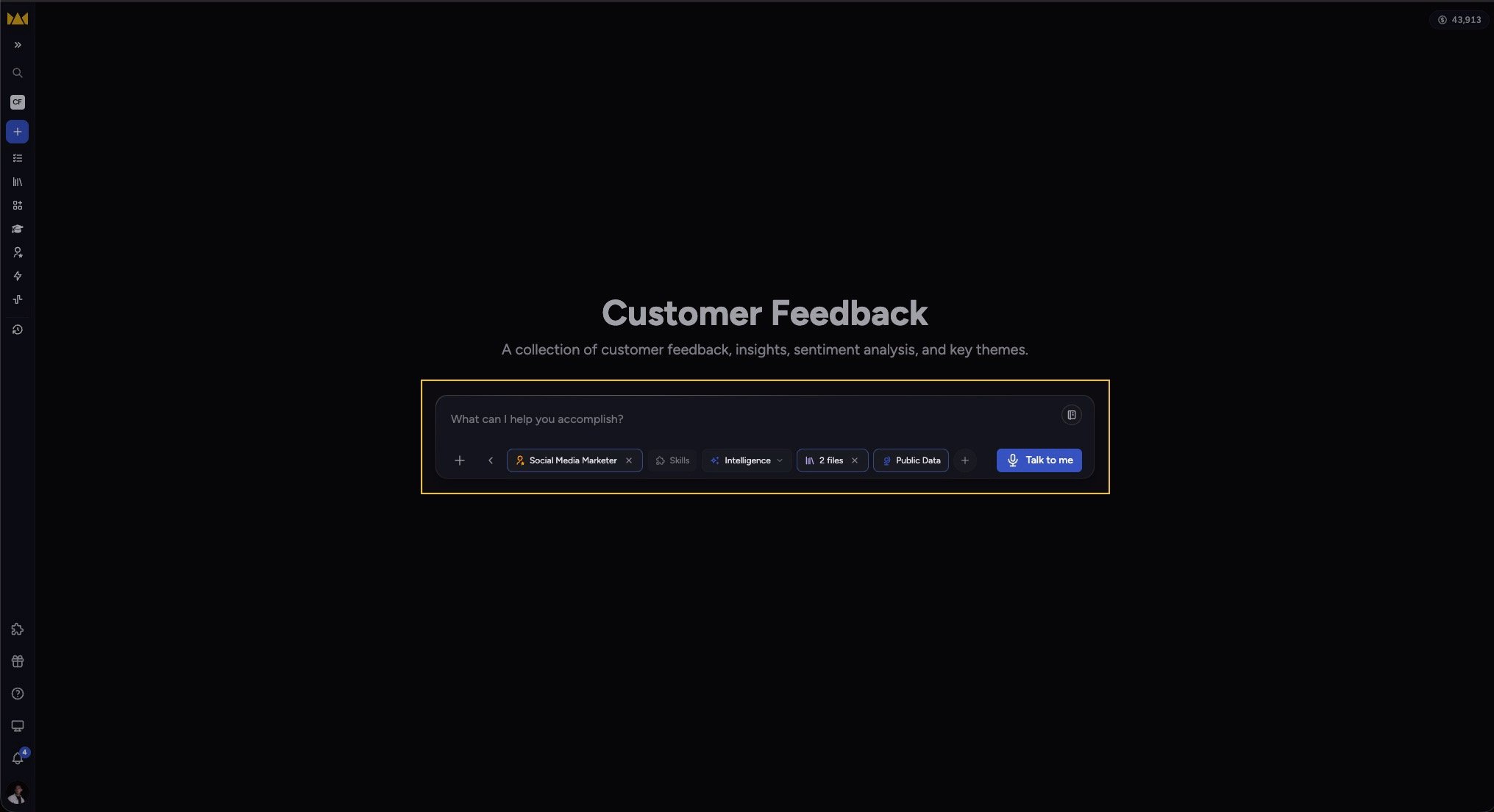
Chief has three main areas: the navigation sidebar on the left, the prompt bar in the center, and the home screen around it. Here’s what each one does.The navigation sidebar
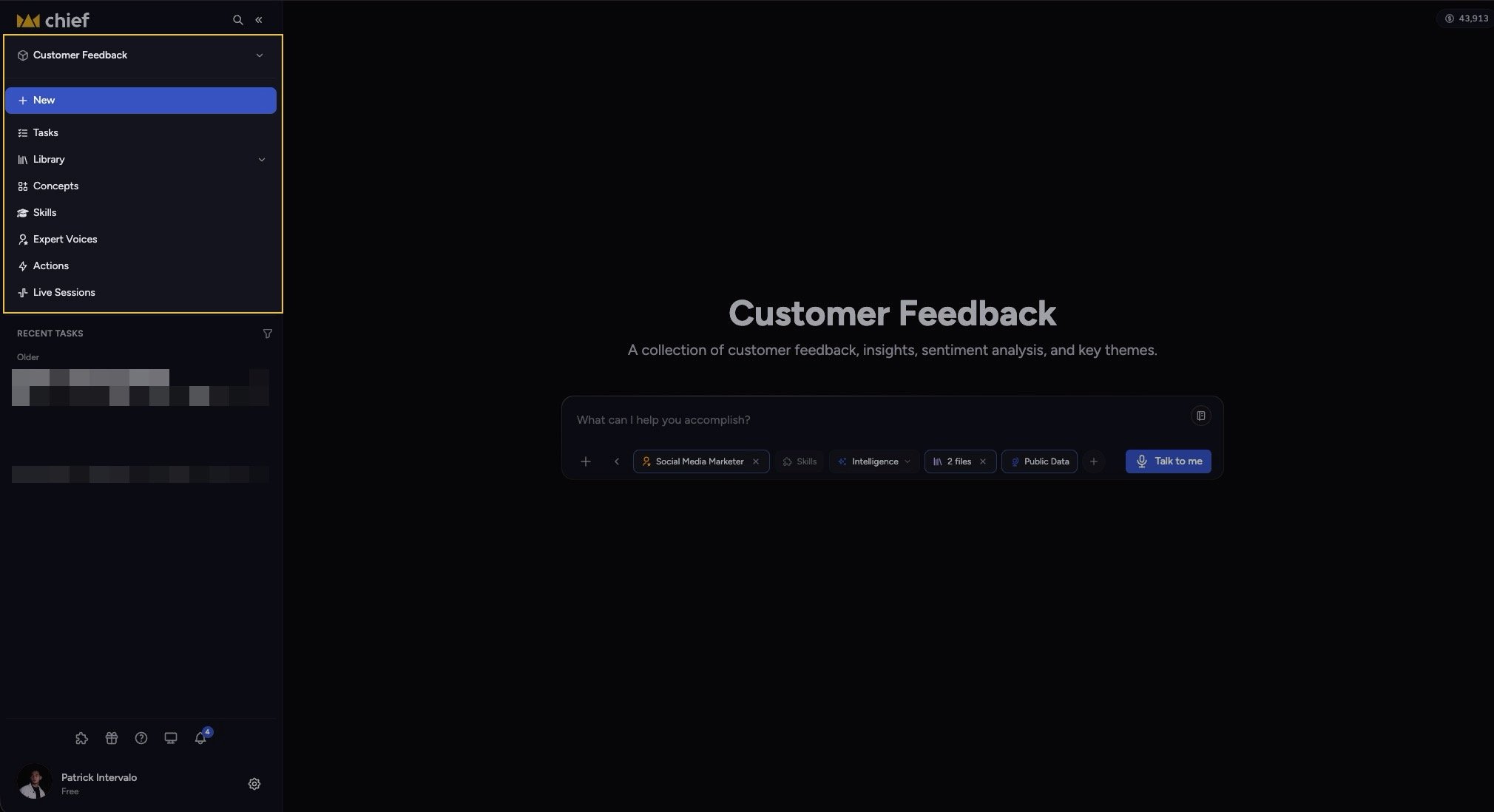
- Search — the magnifier icon in the sidebar header, next to the Chief logo (its tooltip reads “Search tasks…”). Click it to open the Search page and find past conversations.
- Projects — switch between Projects or create one with New Project.
- New — start a fresh conversation (keyboard shortcut Opt + Shift + N).
- Tasks — all your conversations.
- Library — your uploaded Files, with Labels and Collections nested inside.
- Concepts — topics Chief continually monitors across your Files.
- Skills — specific abilities you can invoke in a task.
- Expert Voices — response styles that make Chief answer as a subject-matter expert.
- Actions — automations that run on a schedule or when new data arrives.
- Live Sessions — meeting capture (powered by the desktop app).
Good to Know: Some items — like Concepts and Collections — only appear when you’re in Advanced mode. You can switch between Regular and Advanced under Settings → General (the “User Mode:” setting).
The prompt bar
The home screen
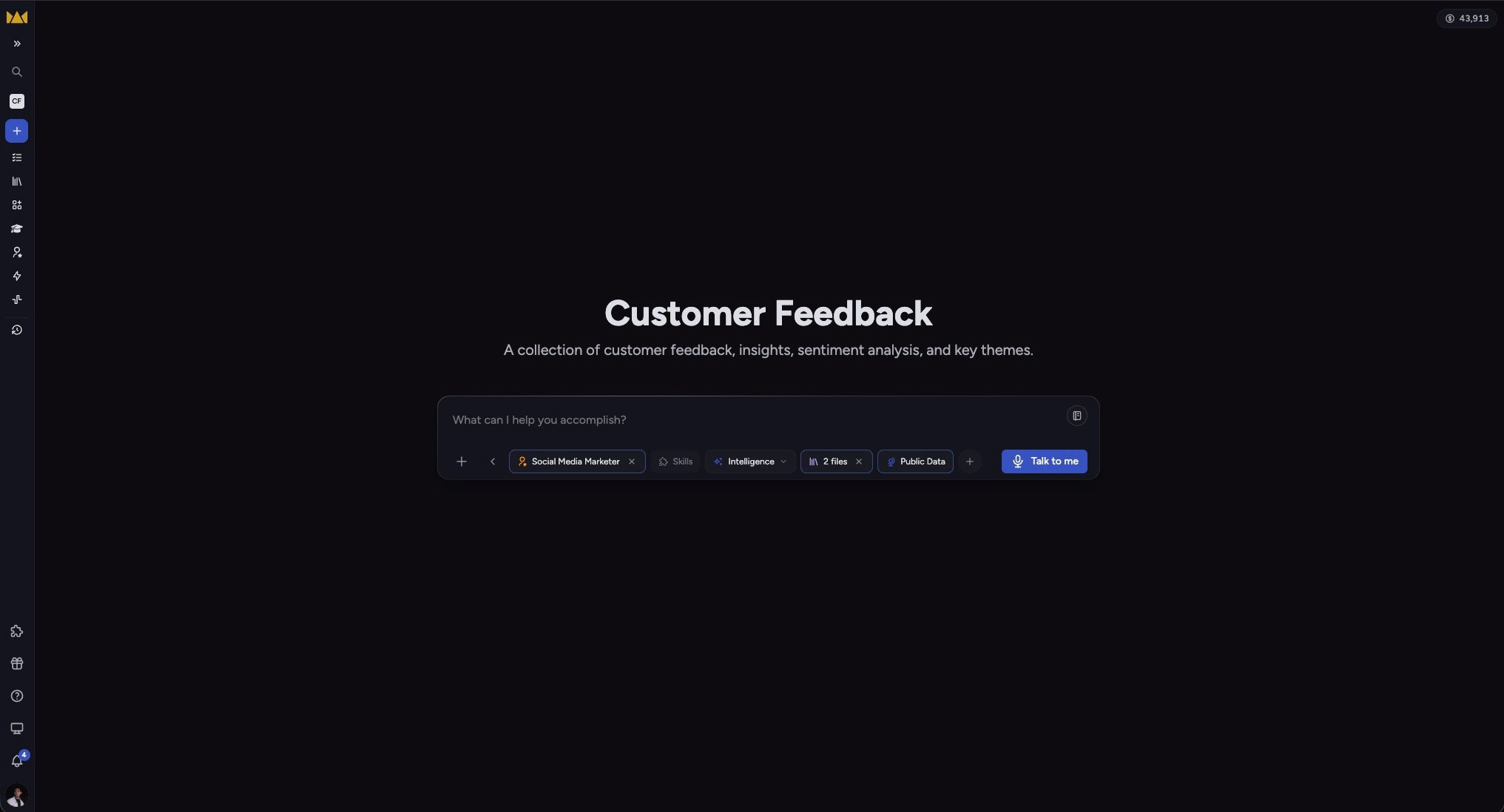
/ in the prompt bar to open your Saved Prompts. If you have not saved any prompts yet, the picker does not appear.
FAQ
The Search page says "Upgrade to Pro to use task search." Why can't I search?
The Search page says "Upgrade to Pro to use task search." Why can't I search?
Task search is a Pro feature. On a Free plan, the search icon still opens the Search page, but when you run a search the page shows a card reading “Upgrade to Pro to use task search” — “Full-text search across your tasks is available on paid plans.” Click See plans to upgrade and enable it.