

Create a custom Expert Voice
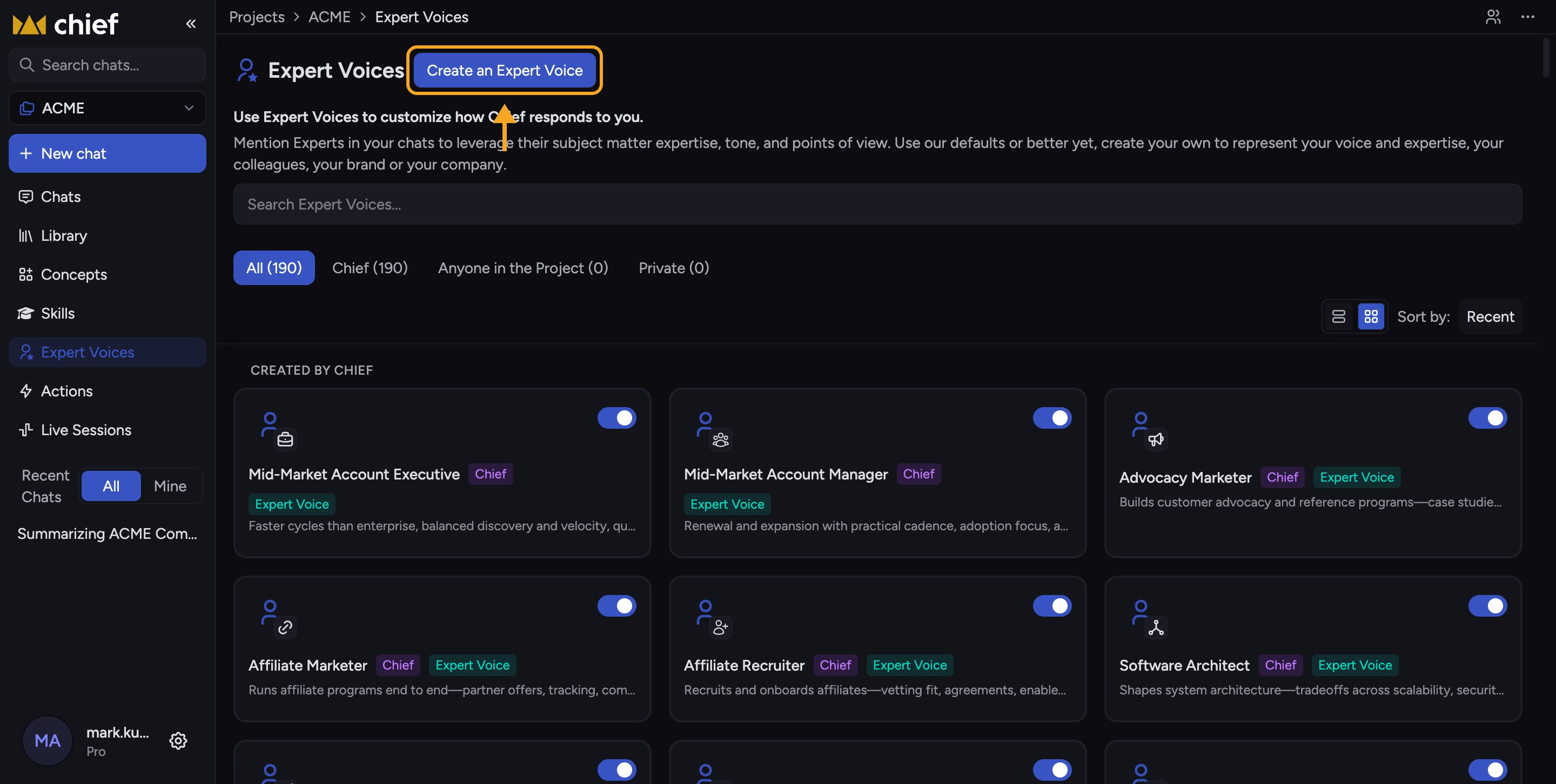
- In the left navigation, click Expert Voices to open the page.
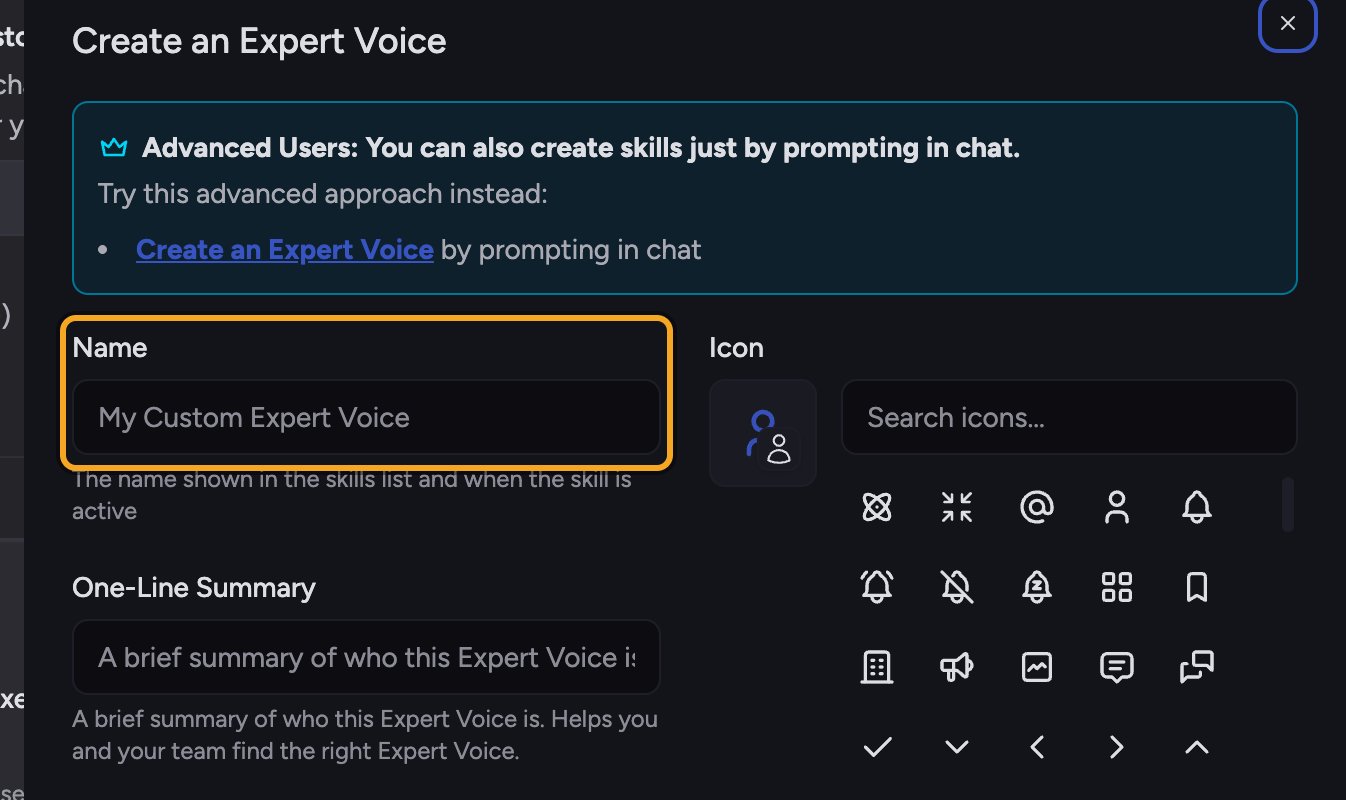
- Click the Create an Expert Voice button. The Create an Expert Voice dialog opens.
- In the Name field, type a name for the voice (for example, “Our Brand Voice”).
- In the One-Line Summary field, type a brief summary of who this voice is. It helps you and your team pick the right voice later.
- Once the name has text, a green panel appears with a Generate button. Click Generate. Chief drafts the full voice definition and fills it into the content editor.
- Review the definition and edit it in the content editor to fine-tune the tone and perspective.
- Under Who can use this Expert Voice?, choose Anyone in the Project or Private.
- Click Save. Your voice now appears in the voice picker, ready to apply.
FAQ
What's the difference between a custom Expert Voice and a custom Skill?
What's the difference between a custom Expert Voice and a custom Skill?
An Expert Voice defines how Chief communicates (tone and perspective). A Skill defines a task for Chief to perform. The page you create from sets the type: create on the Expert Voices page for a communication style, or on the Skills page for a task.
Can I edit my voice after saving?
Can I edit my voice after saving?
Yes. Open it on the Expert Voices page and click Edit to change the definition. The scope you chose when you created it (Anyone in the Project or Private) can’t be changed afterward.