

Why spreadsheets are different
CSV and XLS files hold structured data, so Chief treats them differently from documents. To work with a spreadsheet, you add it to your task individually rather than relying on Chief to pull it in automatically with the rest of your knowledge.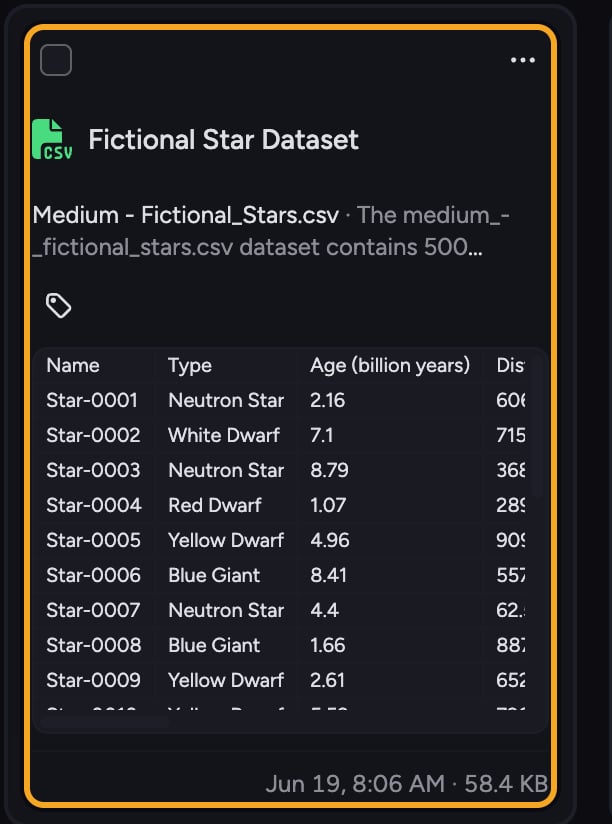
Add a spreadsheet to a task
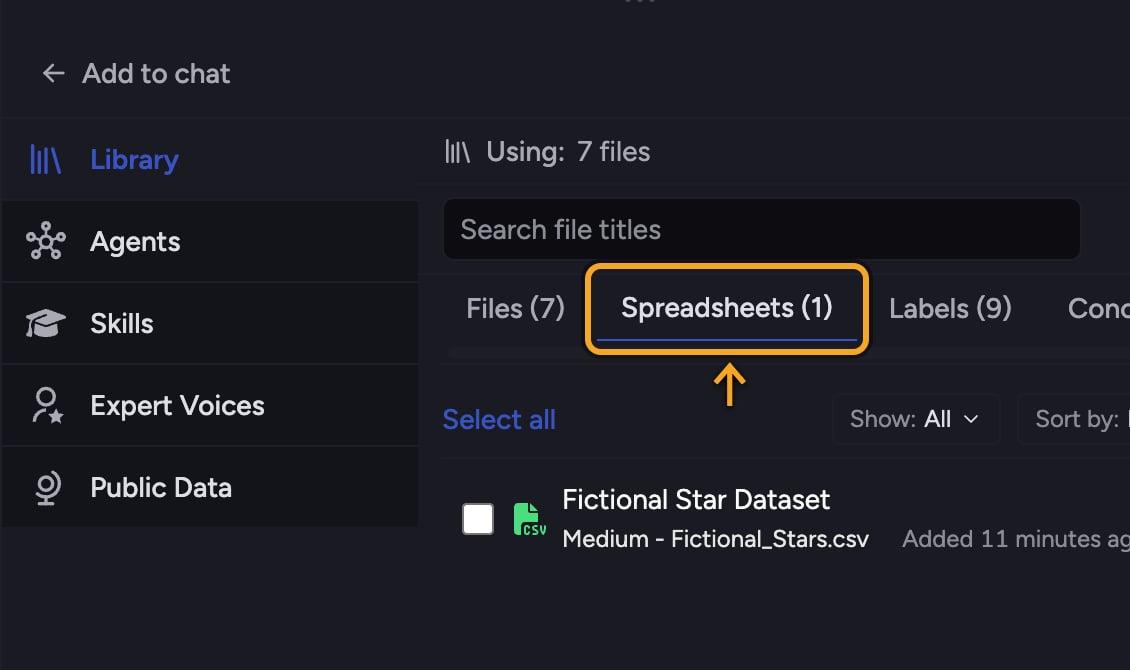
- Open the file picker for your task and find your spreadsheets.
- CSV and XLS files appear under their own tab, separate from your other files.
- Select the spreadsheet you want to work with so it is added to the task.
- Ask your question. Chief now works directly with that spreadsheet’s data.
ℹ️ Good to Know: Structured data files must be added to your task individually to work with them. If a CSV or XLS file was not included automatically, that is expected — add it yourself.
The “spreadsheets locked” notice
When every one of your non-spreadsheet files is already selected for a task, spreadsheets become Unavailable when all files selected. The notice points you to a Click here link to enable spreadsheets, and you will see the guidance: You need to deselect at least 1 file to use spreadsheets. Deselect one file and your spreadsheets become selectable again. This only appears once a Project has more than 50 non-spreadsheet files; smaller Projects do not lock spreadsheets. Related articles: How Chief processes spreadsheets · Uploading files and supported file types · Setting the scope of a task · What is the Library?FAQ
My CSV files were not included in the task. Did something go wrong?
My CSV files were not included in the task. Did something go wrong?
No. Spreadsheets are added individually by design. Open the picker, switch to the CSV/XLS tab, and add the file you want.
Why are my spreadsheets greyed out?
Why are my spreadsheets greyed out?
Spreadsheets are unavailable when all of your other files are selected. Deselect at least one file to make spreadsheets selectable again.