

Switch to another Project
Chief works inside one active Project at a time. To move to a different one: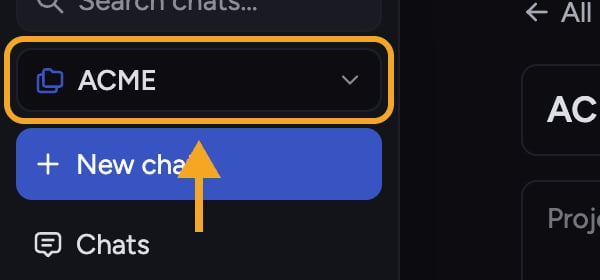
- Click the active Project name to open the Project picker.
- Click Browse all projects to see every Project you’re a member of across your Organizations, then select the one you want. Chief switches your active context to it and closes the picker.
ℹ️ Good to Know: Switching Projects doesn’t stop a task that’s still generating — it keeps running in the background, and the finished answer will be waiting when you come back to that Project.
Find a Project

- Open the Project picker and click Browse all projects.
- In the search box at the top (“Search for a project to switch to…”), type part of a Project’s name. The list filters as you type.
Bookmark a Project

Frequently asked questions
I typed a name in the search box but nothing shows up.
I typed a name in the search box but nothing shows up.
Search matches Projects you’re a member of across your Organizations. If there’s no match, you may be searching for a Project you were never added to, or the name differs from what you typed. The picker will offer to create a new Project with that name.
Why don't I see an A–Z sort option?
Why don't I see an A–Z sort option?
The current Project picker groups recently used Projects under Recent and lets you search by name. It does not include a separate alphabetical sort control.
I sent someone the Project URL but they can't open it.
I sent someone the Project URL but they can't open it.
The URL isn’t an invite. Add them through email, domain, or a secret link so they become a member — then the URL will work for them.