

Just ask — the prompt bar is your starting point
When you open a Project, the home screen shows the Project’s name and a single prompt bar in the center with the placeholder “What can I help you accomplish?” You don’t need to create a task first — type your question and send it to begin a new conversation.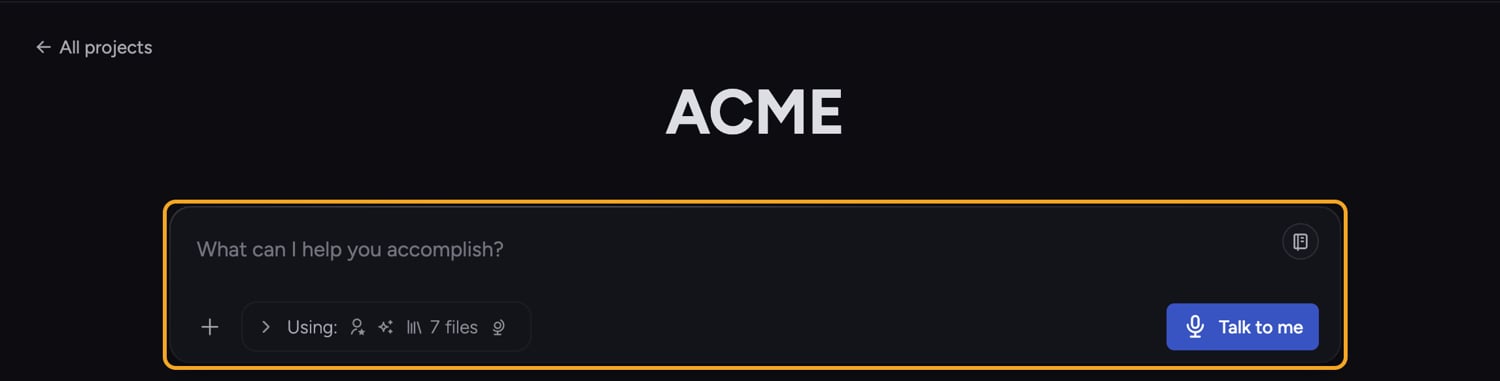
Start a conversation

- Click into the prompt bar. The placeholder reads “What can I help you accomplish?”
- Type your question or request.
- Click the Submit button — the arrow icon at the end of the prompt bar — or press Enter to send.
- Chief replies in a new task thread. Keep typing in the same bar to continue the conversation.
Use a Saved Prompt
- Type
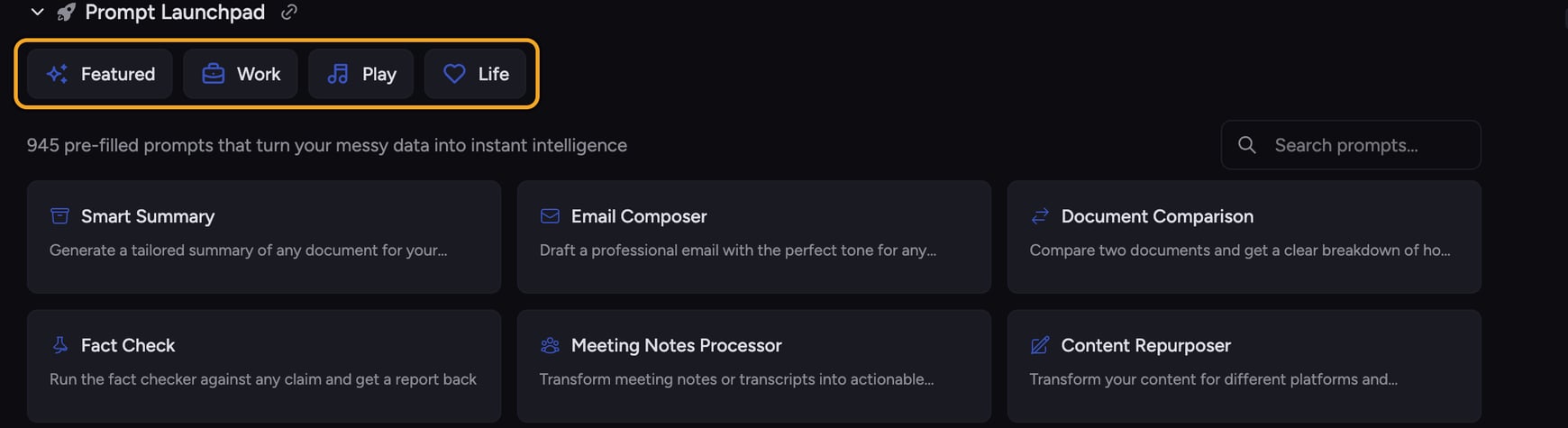
/in the prompt bar. - Search for and select a Saved Prompt. Its content, including any variable fields, loads into the prompt bar.
- Fill the variable fields, edit the text if needed, then click Submit.
Good to Know: Selecting a Saved Prompt fills the prompt bar but does not send automatically. To reuse your own version later, save it as a Saved Prompt.
FAQ
Pressing Enter added a new line instead of sending. How do I fix that?
Pressing Enter added a new line instead of sending. How do I fix that?
Enter-key behavior is configurable. Depending on your setting, Enter either sends the message or makes a new line. You can change this behavior in the Command Center settings if it’s not doing what you expect.
Do my answers use my uploaded files automatically?
Do my answers use my uploaded files automatically?
Chief draws on the files included in the task’s scope. Upload documents to your Library and include them so answers are grounded in your own data rather than general knowledge.