

Where interface preferences live
Most interface preferences are in Settings → General. The Enter-key behavior is set in the Command Center, which you open from the + button in the prompt bar or with ⌘K / Ctrl+K.Preferences in Settings → General
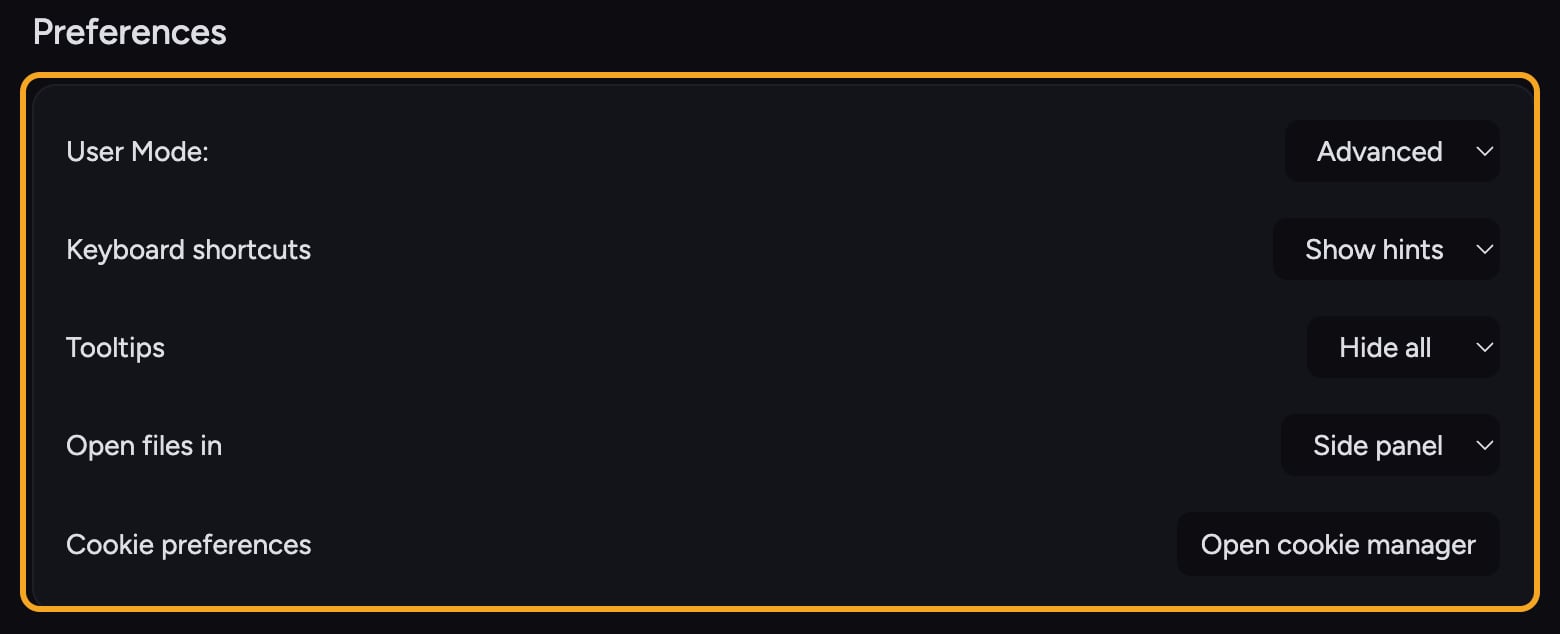
- Click your avatar at the bottom-left of the sidebar, then click Settings.
- Stay on the General tab. In the Preferences card you will find these dropdowns:
- Theme — choose Match system, Light, or Dark.
- User Mode — switch between Regular and Advanced. Advanced unlocks power-user controls.
- Keyboard shortcuts — Show hints, Hide hints, or Disable the on-screen shortcut hints.
- Tooltips — Show all or Hide all in-app help tooltips.
- Open files in — choose Side panel (files open beside your task) or Full page (files take the whole view). This is the sidebar setting.
- Cookie preferences — click Open cookie manager to review consent choices.
Set the Enter-key behavior
This controls what the Return key does while you are typing a prompt.- In the task view, click + in the prompt bar, or press ⌘K / Ctrl+K, to open the Command Center.
- Under Configure, click Return key.
- Choose Sends the message or New line.
FAQ
I keep sending half-finished prompts by accident. How do I stop that?
I keep sending half-finished prompts by accident. How do I stop that?
Open the Command Center, click Return key under Configure, and set it to New line. Then use Shift + Return to send when you are ready.
My preferences reset after I cleared my browser data.
My preferences reset after I cleared my browser data.
Interface preferences like Enter-key behavior and Open files in are stored in your browser. Clearing site data or switching browsers resets them to defaults. Set them again on the new browser.
I don't see the User Mode dropdown.
I don't see the User Mode dropdown.
It is in Settings → General in the Preferences card. Make sure you are on the General tab and signed in.