

Add a memory
- Open the memory page for the scope you want: Settings → Memory for Your Memories, the project’s Memories page for Project Memories, or the organization’s Memory page for Organization Memory.
- Click the Add Memory button (the one with the + icon). It appears in the section header, or in the center of the page if you do not have any memories yet. A text box appears.
- Type your memory in the text box. The placeholder reads “Enter a memory entry…” Keep it to one clear fact, like “Prefers concise answers with bullet points.”
- Click Save. The memory appears in the list below. To back out instead, click Cancel.
Edit a memory

- Find the memory in the list on its memory page.
- On the memory card, click the Edit button (the pencil icon on the right). The card turns into an editable text box with the current text.
- Change the wording.
- Click Save to keep your change, or Cancel to discard it.
Delete a memory
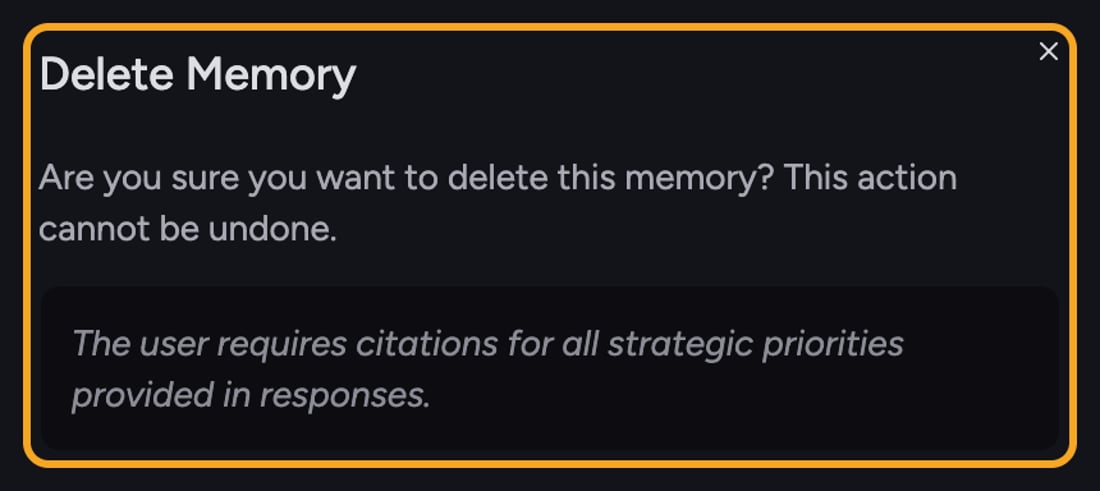
- On the memory card, click the Delete button (the trash icon on the right).
- A confirmation dialog titled Delete Memory appears, warning that this can’t be undone.
- Click Delete to remove it permanently.
FAQ
I can see a project memory but there are no edit or delete icons on it. Why?
I can see a project memory but there are no edit or delete icons on it. Why?
You can only edit memories you’re allowed to change. Owners can edit any memory in their scope; collaborators can edit the ones they created. If you didn’t create that memory and aren’t an owner, the edit, archive, and delete icons won’t appear.