

Before you delete
Deleting a Project is permanent. The Project and all its data — files, Knowledge, and tasks — are removed for every user and can’t be recovered.Delete a Project

- Open the Project you want to remove.
- In the sidebar, open the Projects dropdown and select Delete Project under the active Project’s name.
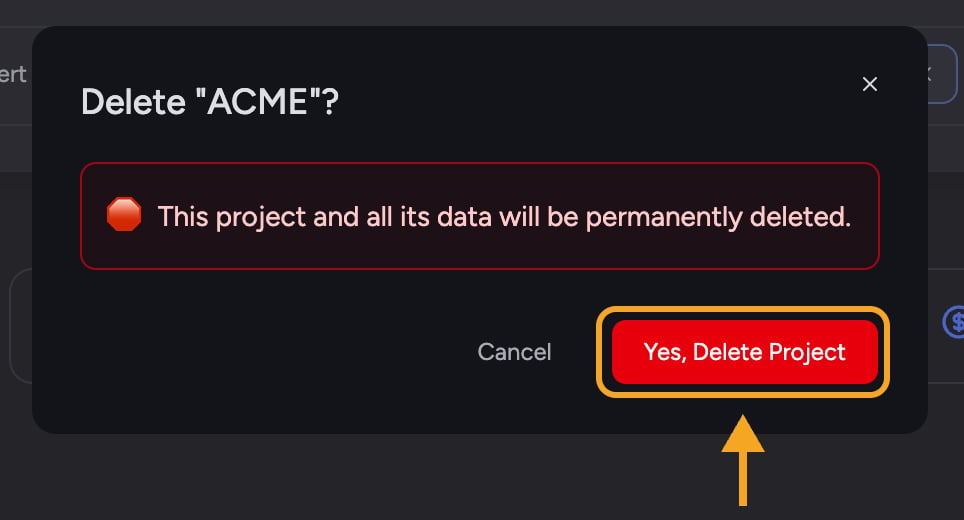
- In Delete “[Project name]”?, review the warnings: “This project and all data will be permanently deleted for all users” and “This action is permanent. Deleted projects cannot be restored.”
- Under Type the project name to confirm deletion:, enter the Project name exactly. Yes, Delete Project stays unavailable until the name matches.
- Click Yes, Delete Project to confirm (or Cancel to keep it). You can also press Enter after the name matches.
The default Project can’t be deleted
Your account’s default Project can’t be removed — its Delete Project row in the Projects dropdown is greyed out and can’t be clicked. Chief explains why only in a hover tooltip — “You can’t delete this default project, but you can rename it” — and that tooltip appears only when Settings → General → Tooltips is set to Show all. By default it’s hidden, so hovering the row shows nothing. If you no longer want its current name or contents, rename it instead and reuse it.Frequently asked questions
The Delete Project option is greyed out — why?
The Delete Project option is greyed out — why?
You’re either looking at your default Project or you don’t have permission to delete it. The Delete Project row stays visible but unavailable in both cases. Its hover tooltip says, “You can’t delete this default project, but you can rename it,” even when permissions are the reason — and you only see that tooltip after you set Settings → General → Tooltips to Show all, since tooltips are hidden by default. Ask an Owner to delete a shared Project, or rename your default Project from the same menu.
The delete failed with an error message.
The delete failed with an error message.
This is usually temporary or a permissions issue. Refresh and try again, and confirm you have permission to delete the Project (an Owner can). If it keeps failing, the Project wasn’t deleted and your data is intact.