

Browse the built-in voices
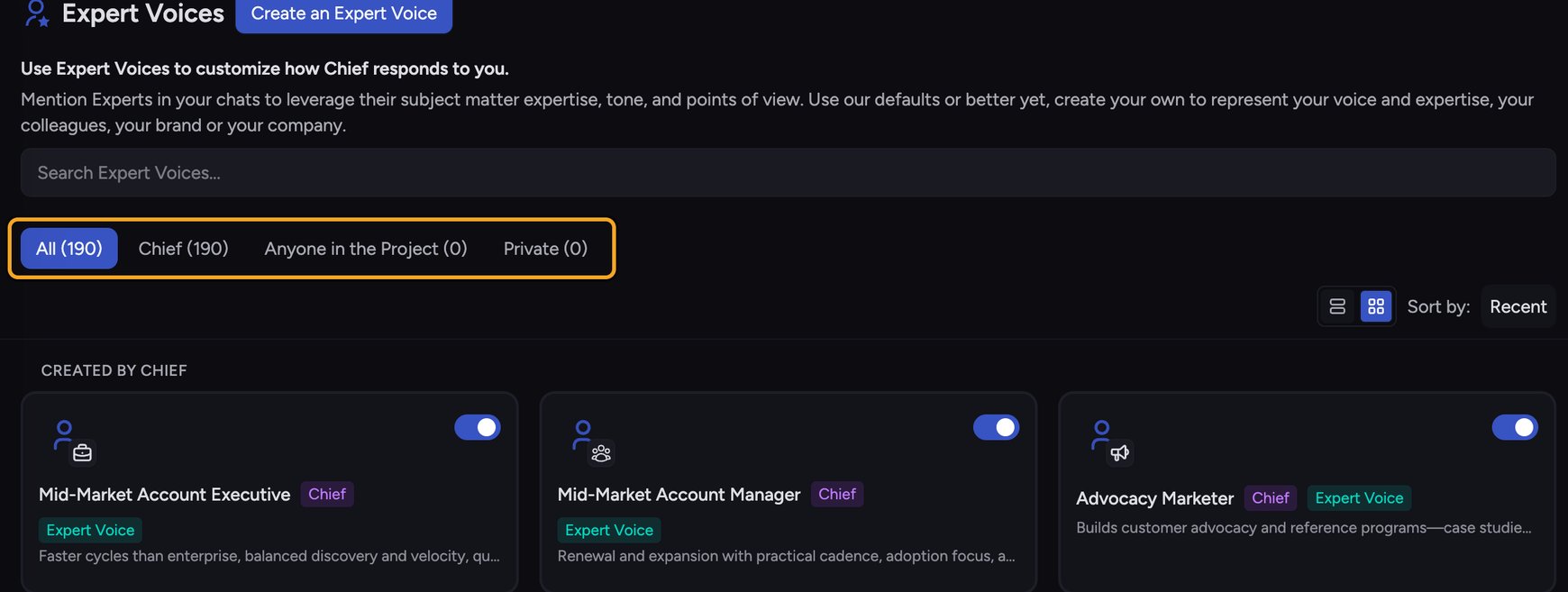
- In the left navigation, click Expert Voices. The page lists every voice available to you.
- Voices badged Chief are the built-in ones. To narrow the list, click the Chief tab.
Apply a built-in voice from the prompt bar
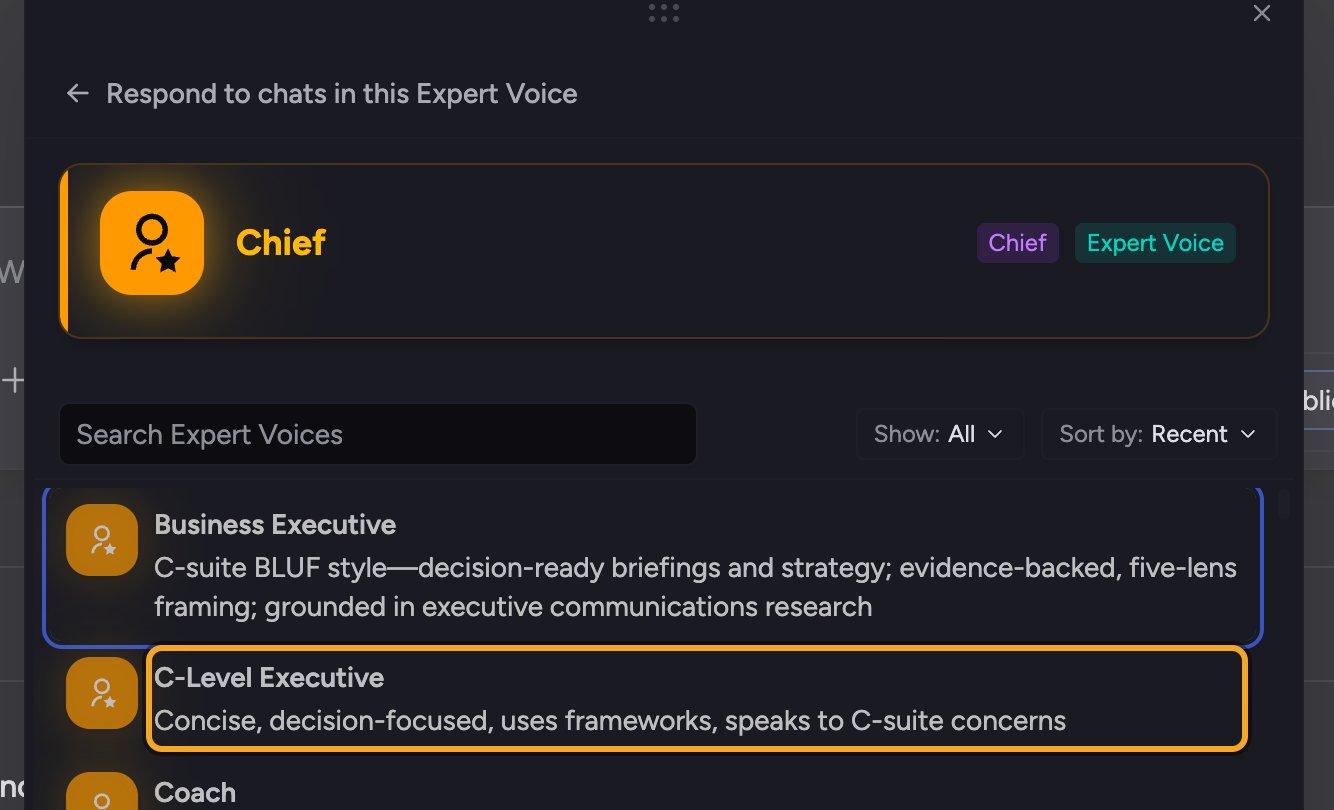
- Open or start a task so the prompt bar is visible.
- Expand the prompt bar’s Using: row, then click the Voice chip to open the voice picker. Built-in voices appear under Created by Chief, below any Created by you voices.
- Click the voice you want — for example, Business Executive. It becomes the active voice.
- Send your message. Chief responds in that voice, and it stays active for your next messages until you change it.
FAQ
How do I go back to the neutral voice?
How do I go back to the neutral voice?
Open the voice picker and click Reset to default beside Selected, or click the × on the voice chip. Chief returns to the Default Expert Voice, which adapts to your task without a specialist tone.
Can I edit a built-in Expert Voice?
Can I edit a built-in Expert Voice?
Built-in Chief voices are read-only. To customize one, create your own Expert Voice instead — you can model it on the built-in voice’s style.
I switched voices but the previous task didn't change.
I switched voices but the previous task didn't change.
Changing the voice affects new responses, not messages Chief already sent. Send a new message (or re-ask) and Chief will reply in the newly selected voice.