

Create a secret link
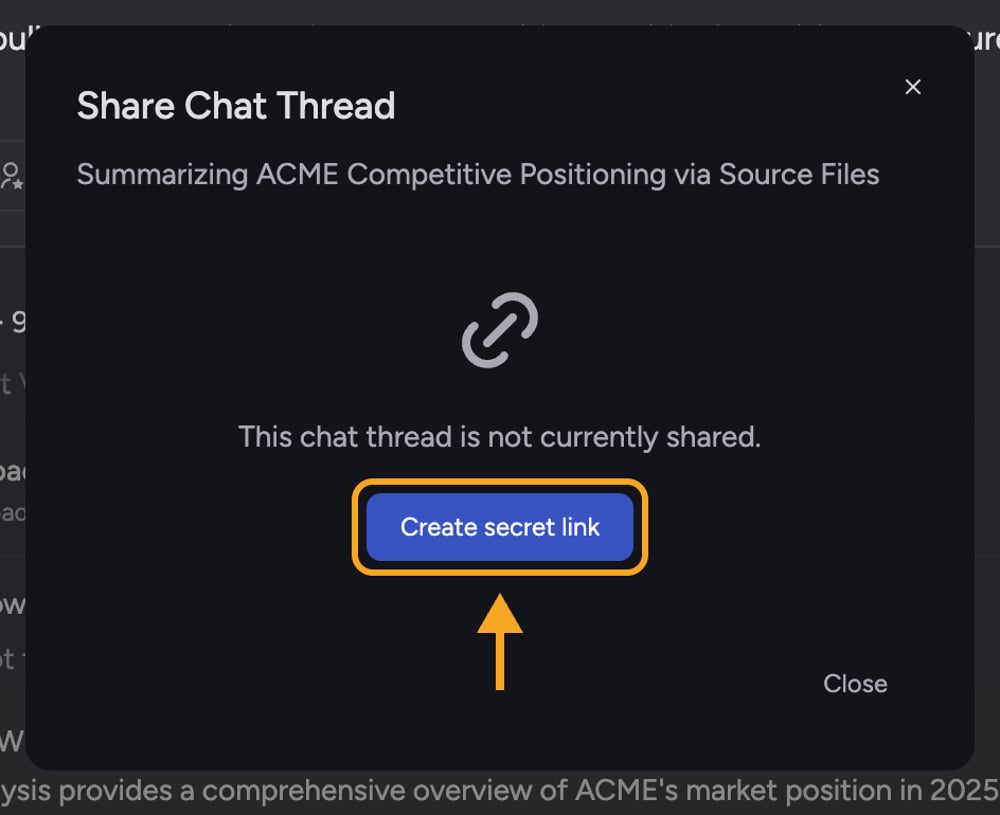
- Open the task you want to share.
- Select Share this page beside the task title. On a narrow screen, select the link icon instead. You can also open the task’s ⋯ menu and select Share secret link. The Share Task dialog opens. The unlabeled link icon attached to an individual answer creates a link that scrolls to that answer.
- If the task is not shared yet, the dialog shows “This task is not currently shared.” Select Create secret link. The button shows “Creating…” while it works.
- When the link is ready, it appears in the Share secret link field and is copied to your clipboard automatically. You will see “Link copied!”.
- Paste the link into an email, message, or document to share it. To copy it again later, select the copy button next to the field.
What recipients can and cannot do
People who open a secret link get a read-only Shared Task view. They can read the whole thread but cannot reply, edit, or use Project actions (analyzing, citing sources, adding to the Library) unless they are a signed-in member of the Project. The header offers them a way to try Chief or open the Project if they have access. The footer only notes that the conversation was shared via Chief.Turning the link off
A secret link stays active until you revoke it. To shut off access for everyone who has the link, select Revoke link in the same dialog.FAQ
I clicked Create secret link and got "Failed to create sharing link." What now?
I clicked Create secret link and got "Failed to create sharing link." What now?
This is usually a temporary connection issue. Close the dialog and reopen it — if a link was actually created in the background, the dialog will load the existing link instead of erroring. If it still fails, wait a moment and try again.
Does the secret link update if I keep chatting?
Does the secret link update if I keep chatting?
The shared view reflects the thread as it stands. If you continue the conversation, recipients opening the link later will see the newer messages, because the link points to the live thread, not a frozen snapshot.