

Two ways to work with Concepts
Chief surfaces most Concepts for you automatically, but you can also define your own — telling Chief exactly which theme to track. And whether a Concept was auto-surfaced or hand-defined, the Concept Graph lets you explore how your themes relate to one another. This article covers both.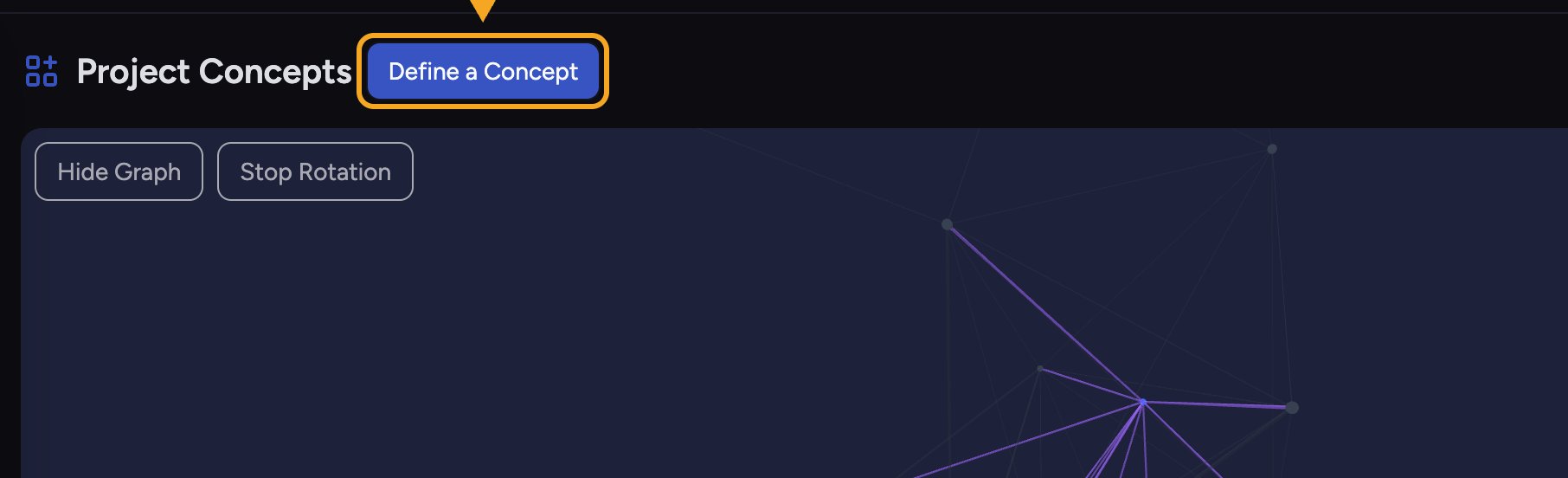
Define your own Concept
- On the Concepts page, click Define a Concept. If your Project has no Concepts yet, use the button in the empty state. If it already has Concepts, use the button next to the Project Concepts heading. The Define a Concept dialog opens.
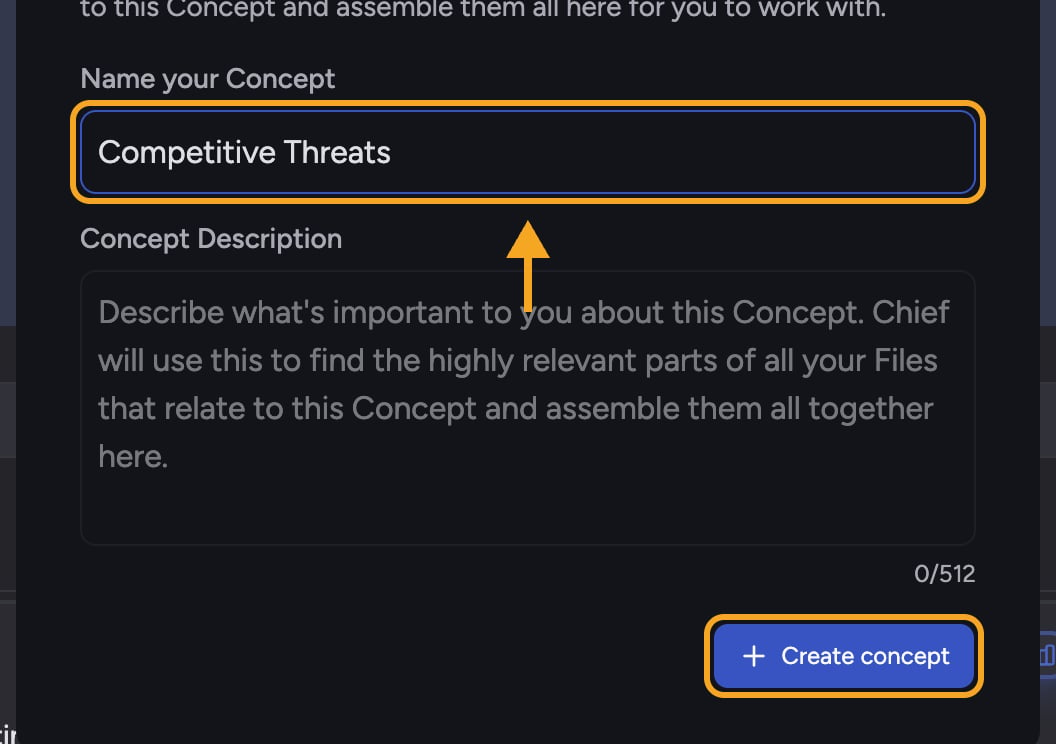
- Click the Name your Concept field and type a name (for example, Market Trends or Key Competitors). The name must be 2 to 256 characters.
- Click the Concept Description field and describe what the Concept covers, so Chief knows what to look for. The description can be up to 512 characters; a counter shows how many you’ve used.
- Click Create concept. The dialog closes and a placeholder card reads {name} is being generated while Chief builds it.
ℹ️ Good to Know: Generating a Concept takes a few seconds, and up to a few minutes for larger data sets. When it’s ready, it joins the list with a small badge showing a person icon, which marks Concepts you created, so you can tell it apart from auto-surfaced Concepts.
Explore the Concept Graph
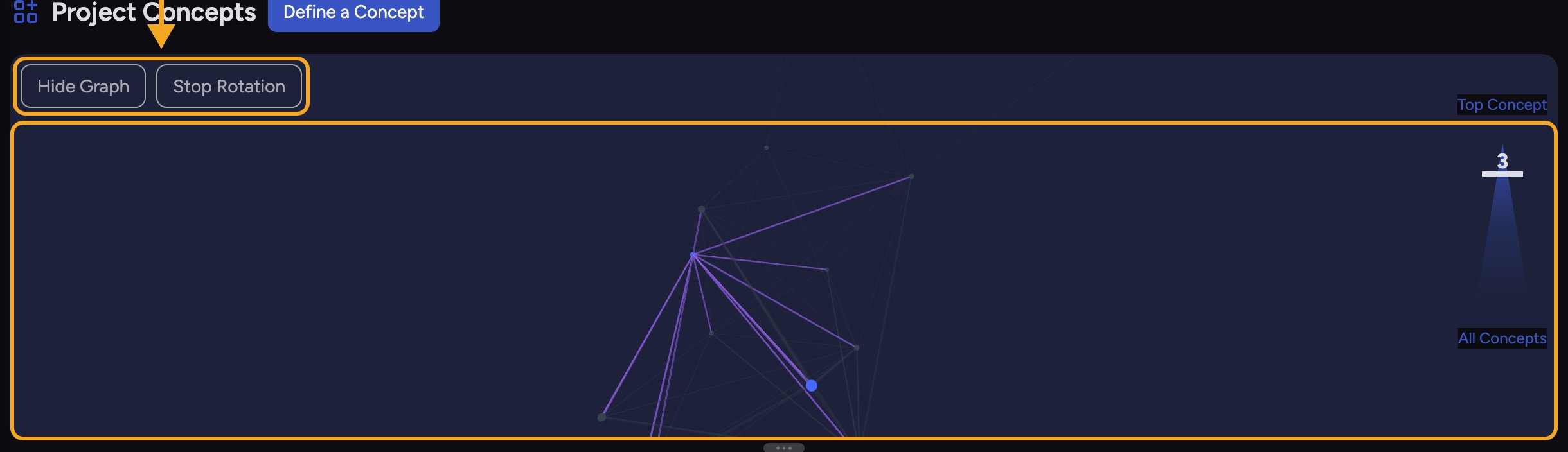
- The graph rotates slowly on its own. Click Stop Rotation to hold it still, or Start Rotation to resume.
- Hover over a node to see the Concept’s name and description.
- Click a node to select that Concept: the view focuses on it, its connected Concepts stay highlighted, and its details open in the side panel.
- Use the vertical slider on the right to control how many Concepts the graph shows — drag toward Top Concept to focus on the most prominent few, or toward All Concepts to reveal more. The list below stays in sync with the slider.
- Click Hide Graph to collapse the graph and give the list more room; click Show Graph to bring it back.
Frequently asked questions
Why won't the Define a Concept dialog let me create?
Why won't the Define a Concept dialog let me create?
The name must be at least 2 characters (and no more than 256), and the description must be 512 characters or fewer. The Create concept button stays disabled until both are within those limits.
I dragged the slider but don't see more Concepts — why?
I dragged the slider but don't see more Concepts — why?
The slider can only show as many Concepts as exist. If you’re already at All Concepts, there are no more to reveal. A hint, “Move the graph slider to see more Concepts,” appears when you haven’t tried the slider yet.
The graph didn't load — what should I check?
The graph didn't load — what should I check?
The graph uses your browser’s hardware-accelerated graphics. If it fails to load, make sure hardware acceleration is on in your browser settings, close some other graphics-heavy tabs, and reload the page.
Can I define a Concept as a guest?
Can I define a Concept as a guest?
No. Defining a Concept requires being signed in. Clicking Define a Concept as a guest prompts you to sign up first.