

Pairing connects the app to your account
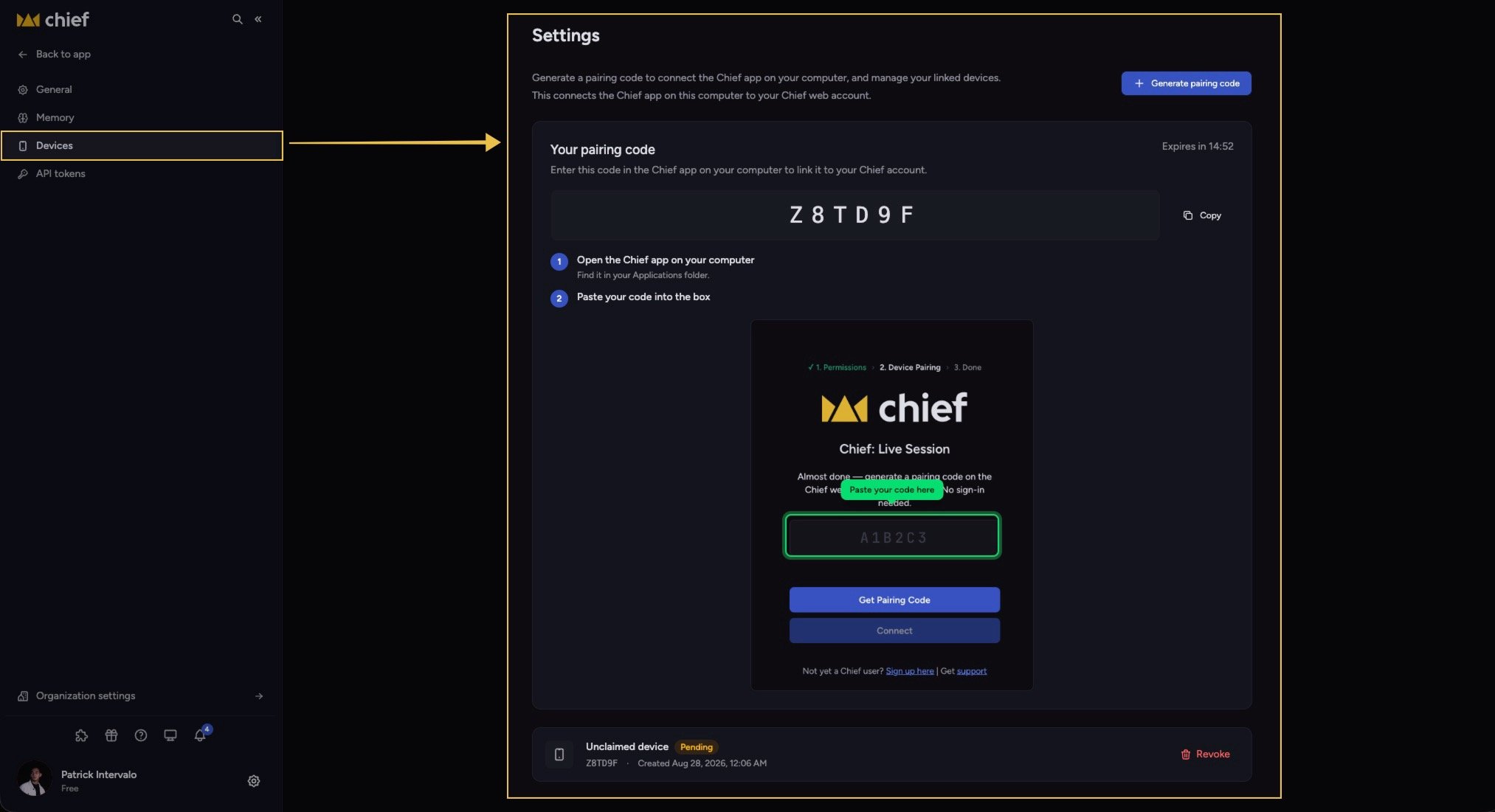
Pair a device
- Open the Chief app on your Mac or Windows PC. On Connect Chief, click Continue in browser.
- The app opens a browser page titled Connect Chief on this Mac? or Connect Chief on this Windows PC? Sign in to your full Chief account, or create one if needed.
- Confirm the displayed code matches the code in the desktop app. Only continue if you started the request yourself.
- Click Connect this Mac or Connect this PC.
Manage and revoke devices
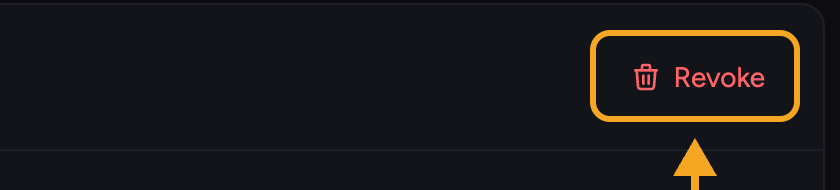
- Find the device in the list.
- Click Revoke.
- Confirm. Revoking signs that device out immediately; you can pair it again later with a new code.
Good to know: You need to be signed in to a full account to manage devices. Signed-out users are prompted to sign in first. A guest may appear signed in after opening shared content, but still cannot generate a pairing code or connect a device.
Updating the app
Keep the Live Sessions App current so capture keeps working. The app checks for updates automatically. On macOS, Automatic updates is on by default after pairing. You can change it from the version menu with Automatically update. When an update is ready and automatic updates are on, Chief waits until it has been idle and in the background for five continuous minutes before installing it. Chief never installs an update automatically during a Live Session. Windows continues to use the manual update flow. To install an update manually:- macOS or Windows: Click Restart in the Update ready message, or click the version number and choose Restart to install. Chief installs the update and relaunches automatically.
FAQ
My pairing request says "Expired" — what now?
My pairing request says "Expired" — what now?
Return to the Chief app and start pairing again. The new browser request remains available for 15 minutes.
I revoked a device by mistake. Can I get it back?
I revoked a device by mistake. Can I get it back?
Yes. Revoking only signs that device out. Start a new pairing request from the desktop app and approve it in your browser.
The app won't pair — it doesn't accept my code.
The app won't pair — it doesn't accept my code.
Confirm you are signed in to the intended full Chief account, not a guest identity. Then confirm the code in the browser matches the desktop app and the request is less than 15 minutes old. Return to the app and start again if needed.
Why does a device that used to work say Pairing revoked?
Why does a device that used to work say Pairing revoked?
Chief removed pairings that had been created with guest identities. The app returns to its welcome screen and shows Pairing revoked with the message This device was unpaired from your Chief account. Create a new pairing code to reconnect. Click Create new code, then sign in to a full Chief account to pair the device again.
The app says an update is ready, but the version hasn't changed. Why?
The app says an update is ready, but the version hasn't changed. Why?
Downloading or staging the update is not the final step. Click Restart or Restart to install and let Chief relaunch.
Why couldn't Chief install the update?
Why couldn't Chief install the update?
Chief shows the installation error beside the update control. If you see Couldn’t install the update. Please try again., try the installation again. On Windows, approve the permission prompt. On macOS, make sure Chief is running from your Applications folder. If the error continues, send the error and your app logs to Chief Support.