

Upload and process the transcript
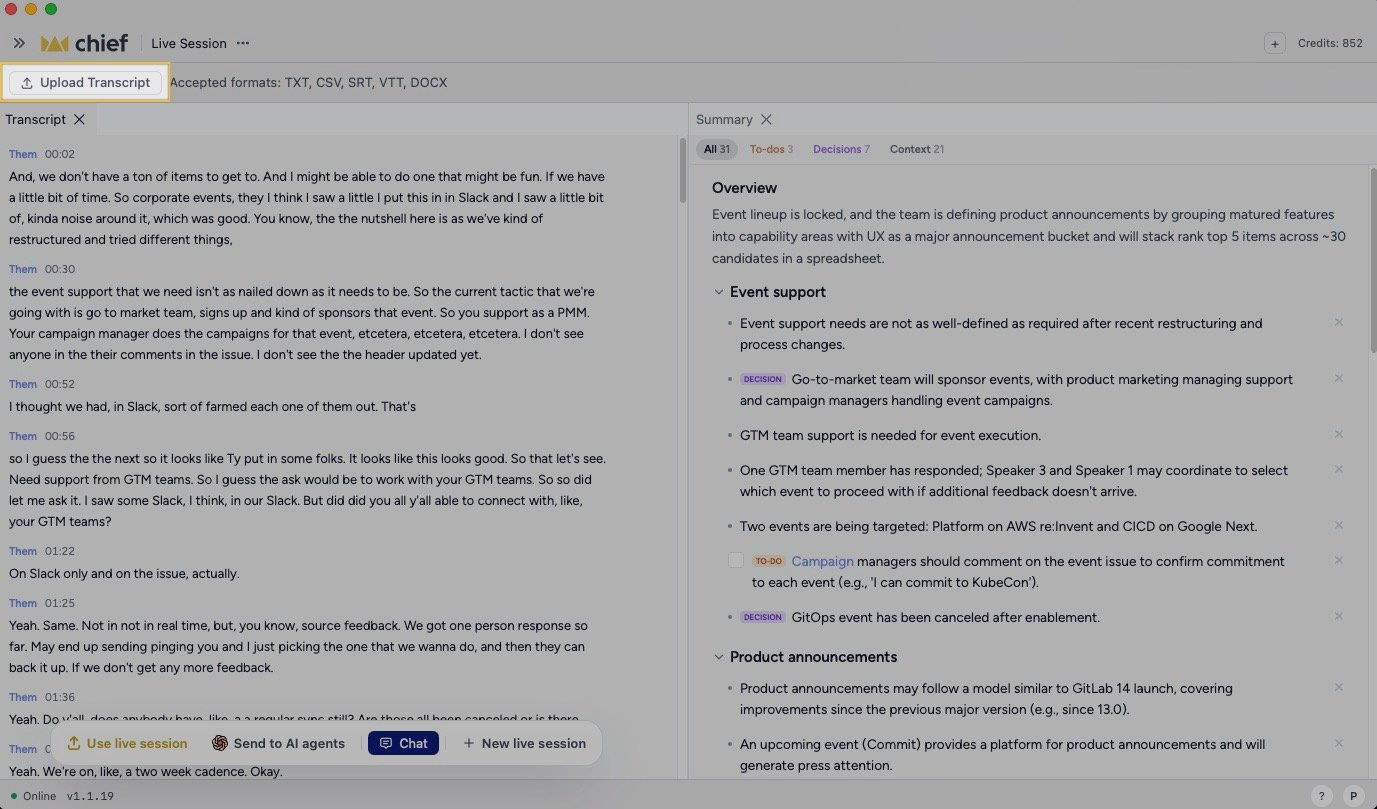
- Open the paired Chief Live Sessions App.
- Make sure no Live Session is recording or being joined.
- On Home, click Already had a call?.
- In Put your last conversation to work, confirm the Project and click Choose transcript.
- Choose a TXT, CSV, SRT, VTT, or DOCX file.
- Keep the app open while it shows Reading filename and then Building your summary….
- When Chief says the file was saved and the summary and action items are ready, click Open notes.
Good to Know: Importing a transcript is different from capturing a meeting live. Chief processes the words in the file; it cannot recover audio or visual context that the transcript does not contain.
If processing fails
The import dialog shows Try again if processing fails. Confirm the file uses one of the accepted formats and retry it. If the same file continues to fail, send a bug report and recent app logs to Chief Support.FAQ
Which transcript formats can I upload?
Which transcript formats can I upload?
The Live Sessions App accepts TXT, CSV, SRT, VTT, and DOCX transcript files.
Why don't I see Already had a call?
Why don't I see Already had a call?
Finish or leave the active Live Session first. Already had a call? is shown on Home while the app is idle.
Will importing a transcript recreate screenshots from the meeting?
Will importing a transcript recreate screenshots from the meeting?
No. The import processes the transcript file. Screenshots and screen context must have been captured separately during a live meeting.