

Why you need the desktop app
Live Sessions are captured by the Chief desktop app on Mac or Windows. The app listens to your microphone and your computer’s audio during a meeting; the web app is where the transcript and results show up afterward. You can’t capture a meeting from the web app alone.Download and install
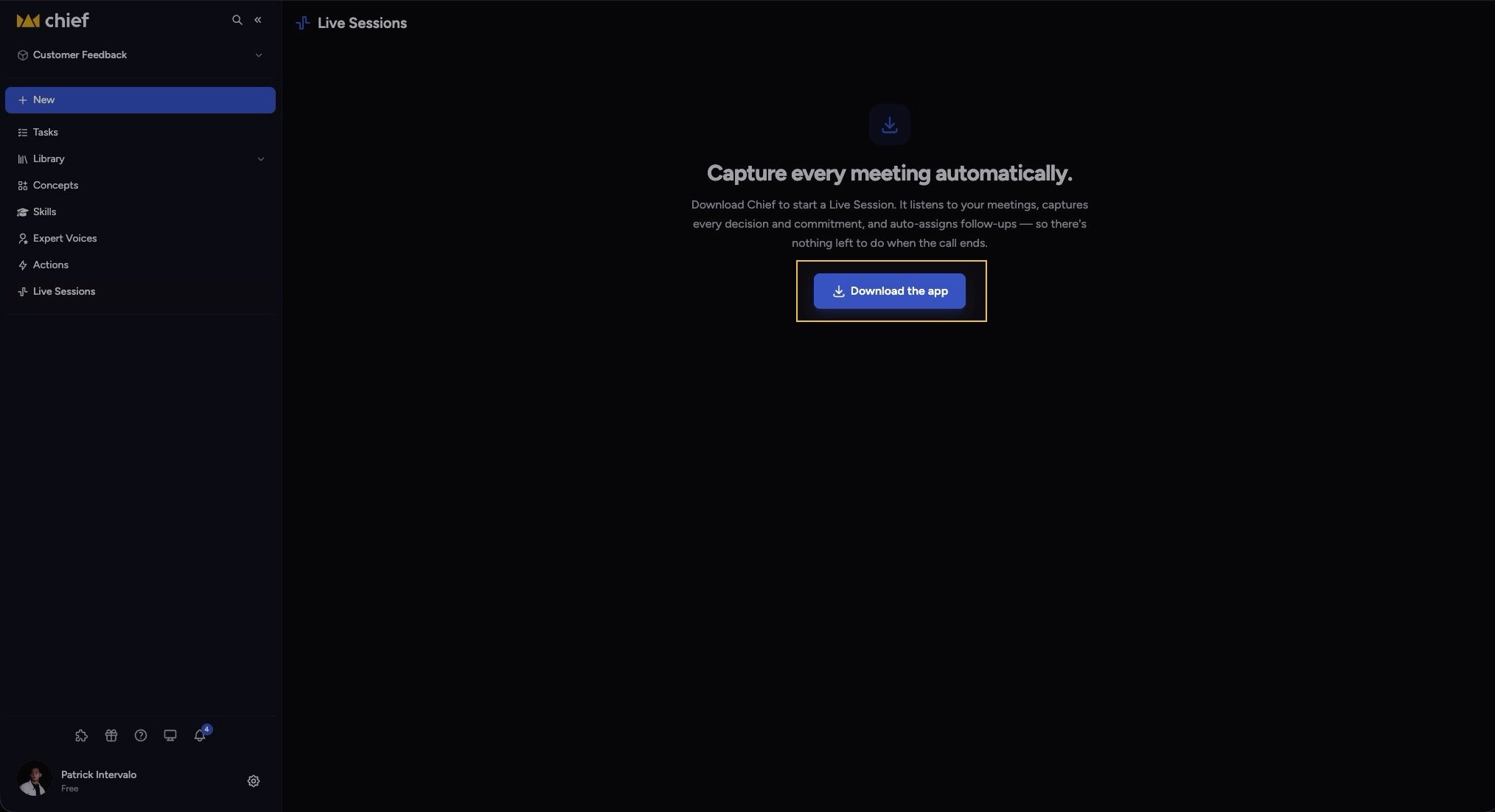
- Open Live Sessions from the left navigation.
- Click Download the app.
- Open the downloaded installer and follow the prompts for your operating system.
- Open Chief from Applications on Mac or the Windows Start menu.
Good to know: If you’re already signed in to Chief, a “Chief works best as a desktop app” prompt may appear in the web app with Download for macOS or Download for Windows — that’s the same download.
Pair the app with your account
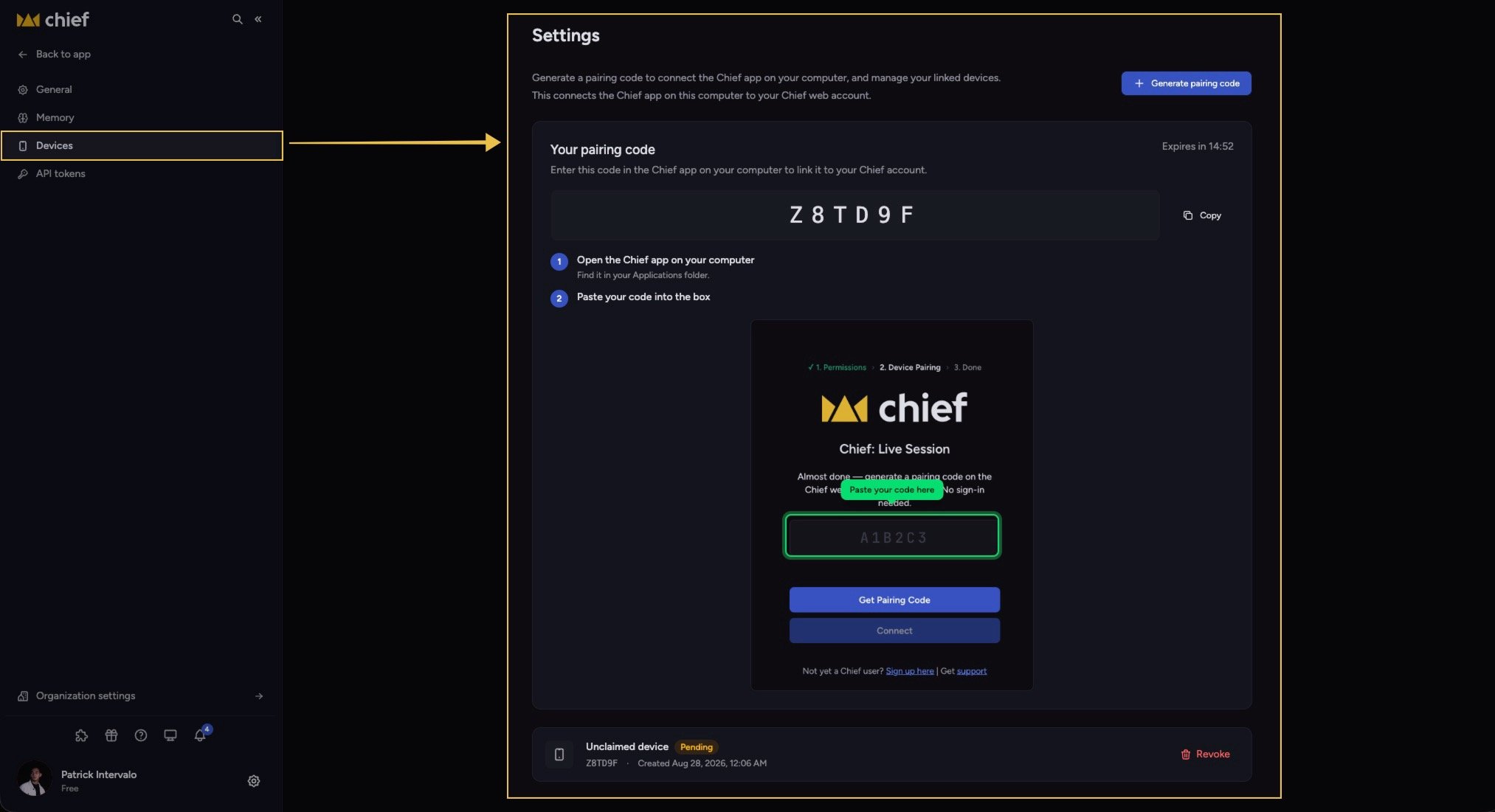
- Open the Chief app on your Mac or Windows PC and start pairing.
- The app opens a secure request in your browser. Sign in if needed.
- Confirm the browser code matches the desktop app, then click Connect this Mac or Connect this PC within 15 minutes.
FAQ
I installed the app but my meetings still don't capture. Why?
I installed the app but my meetings still don't capture. Why?
The app has to be paired with your account and granted microphone and system-audio permissions by your operating system. Pair it from Settings › Devices, then check audio permissions for Chief.
Can I install it on Windows?
Can I install it on Windows?
Yes. The same download area serves a Windows installer, and Windows supports Live Session capture, meeting detection, global shortcuts, screenshots, and automatic app updates.
Where do I find the app after installing?
Where do I find the app after installing?
On Mac, find Chief in Applications. On Windows, open it from the Start menu.