

Use Companion
Ask Chief about your screen
Companion has three ways to ask from any app:- Use Capture area or Capture full screen, then ask about the screenshot.
- Open the quick bar, type your question, and send it.
- Hold the talk shortcut while you ask out loud, then release it. Double-tap the talk shortcut for hands-free listening.
Collect notes and screenshots with Quick Capture
In the Companion panel, click Capture thoughts. A Quick Capture keeps your entries in the order you add them:- Hold the talk shortcut while you speak, or double-tap it for hands-free recording. Chief adds the transcript to the capture.
- Use the capture-area or full-screen shortcut to add a screenshot.
- Type into the open capture when you want to add written context.
Paste only your latest feedback
Use the paste shortcut while a capture is open to paste its new entries into the app where you are working. After a successful paste, the next paste includes only entries added since the previous one. You can also open the capture and choose Copy as Markdown. In Settings › Companion › Captures, Automatically paste where I was typing can paste a finished spoken capture back into the text field you were using when that app is in front again.Share a capture by secret link
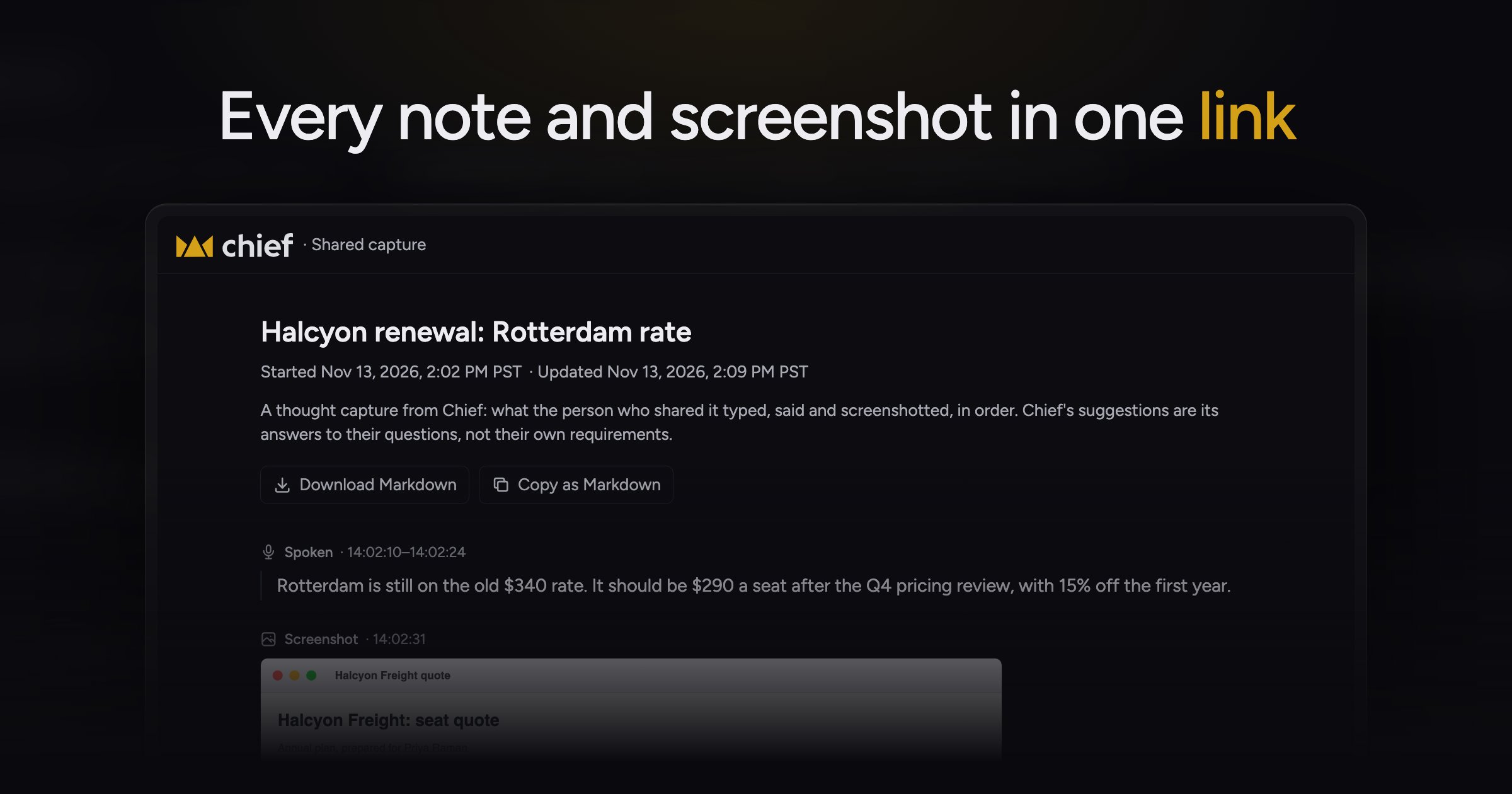
Create a secret link when you want to send the capture to a teammate, a ticket, or an AI agent. Anyone with the link can read its typed, spoken, and screenshot entries in a browser, copy them as Markdown, or download the Markdown. The page updates when you add more to the shared capture. The capture’s Copy link button creates a link the first time you use it. Turn off the link to revoke access. Deleting the capture also turns off its link, and deletion cannot be undone. Auto-copy links for new captures can create and copy a link when the first words or screenshot arrive and again when a hands-free recording stops. It replaces the current clipboard contents, but does not replace them in the middle of a paste.Sync captures and control privacy
Captures are saved on the device that made them. On Mac, Chief also saves them to your account so they appear on every Mac where you sign in. The Saved to your account row shows the last sync time or explains why the last attempt failed. Captures remain private until you copy, paste, send, or share them. Chief transcribes spoken notes in the cloud. Password managers, private browser windows, and secure fields are never read automatically, but a screenshot you take yourself can still include sensitive information. In Settings › Companion, you can also:- Turn Use Companion off without disabling Live Sessions or Tasks.
- Show or hide the Companion button, move it to the left, right, or bottom edge, or hide it for one hour.
- Choose whether spoken questions show your words while you talk.
- Change the Companion shortcuts by clicking a shortcut where it appears.
FAQ
What's the difference between Companion and a Live Session?
What's the difference between Companion and a Live Session?
Companion helps you ask about the app in front of you or collect a focused set of notes and screenshots. It does not require a Live Session. Use a Live Session when you want Chief to capture and organize an ongoing meeting.
Why did a second paste include only part of my capture?
Why did a second paste include only part of my capture?
After a capture is pasted successfully, Chief marks those entries as handed off. The next paste contains only entries you added afterward.
Where are my captures on another computer?
Where are my captures on another computer?
Captures sync across Macs signed in to the same Chief account. Check Settings › Companion › Captures for the sync status. Cross-device capture sync currently covers Macs.
Why can't Companion capture my screen or hear me?
Why can't Companion capture my screen or hear me?
Open Companion and complete the permission shown there. On Mac, screenshots and current-window context need Screen Recording, voice needs Microphone, and some talk keys need Input Monitoring. Restart Chief when the permission card asks you to.
Can I turn Companion off without turning off Live Sessions?
Can I turn Companion off without turning off Live Sessions?
Yes. Turn off Use Companion in Settings › Companion. Companion shortcuts, menu items, and suggestions go away, while Live Sessions and Tasks keep working.